> ## Documentation Index
> Fetch the complete documentation index at: https://nango-marcin-get-deployments-docs.mintlify.site/llms.txt
> Use this file to discover all available pages before exploring further.
# Woocommerce - How do I link my account?
# Overview
To authenticate with WooCommerce, you need two key pieces of information:
1. **Consumer Key** - Your unique account identifier
2. **Consumer Secret** - Secret key associated with the Consumer Key
This guide will walk you through finding or creating those credentials within WooCommerce.
### Prerequisites:
* You must set up WooCommerce on a WordPress instance.
#### Step 1: Finding Your WooCommerce Consumer Key
1. Log into your WordPress instance with admin access and navigate to `WooCommerce` on the left panel and
navigate to `WooCommerce` > `Settings` > `Advanced` > `REST API`.
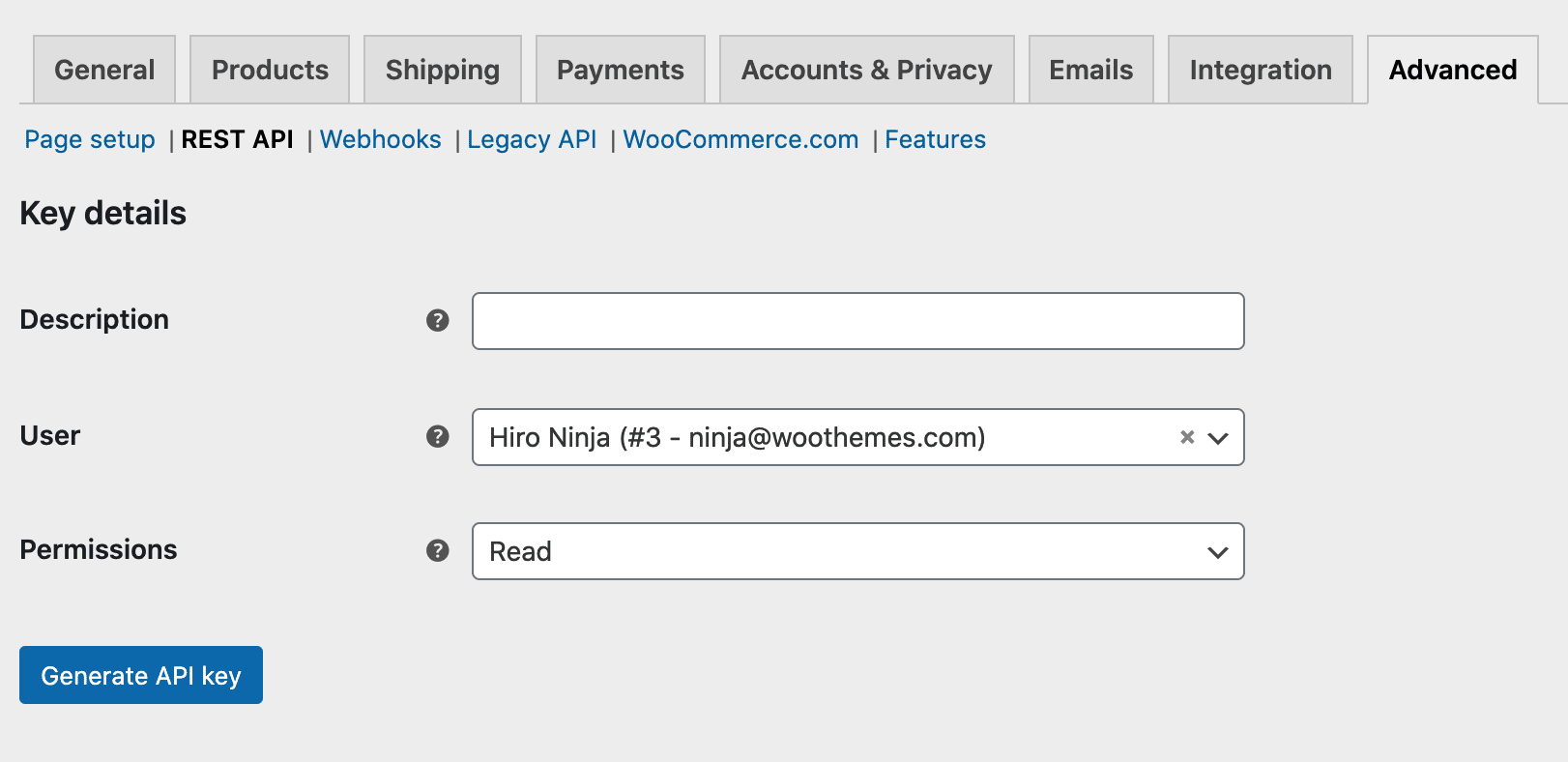
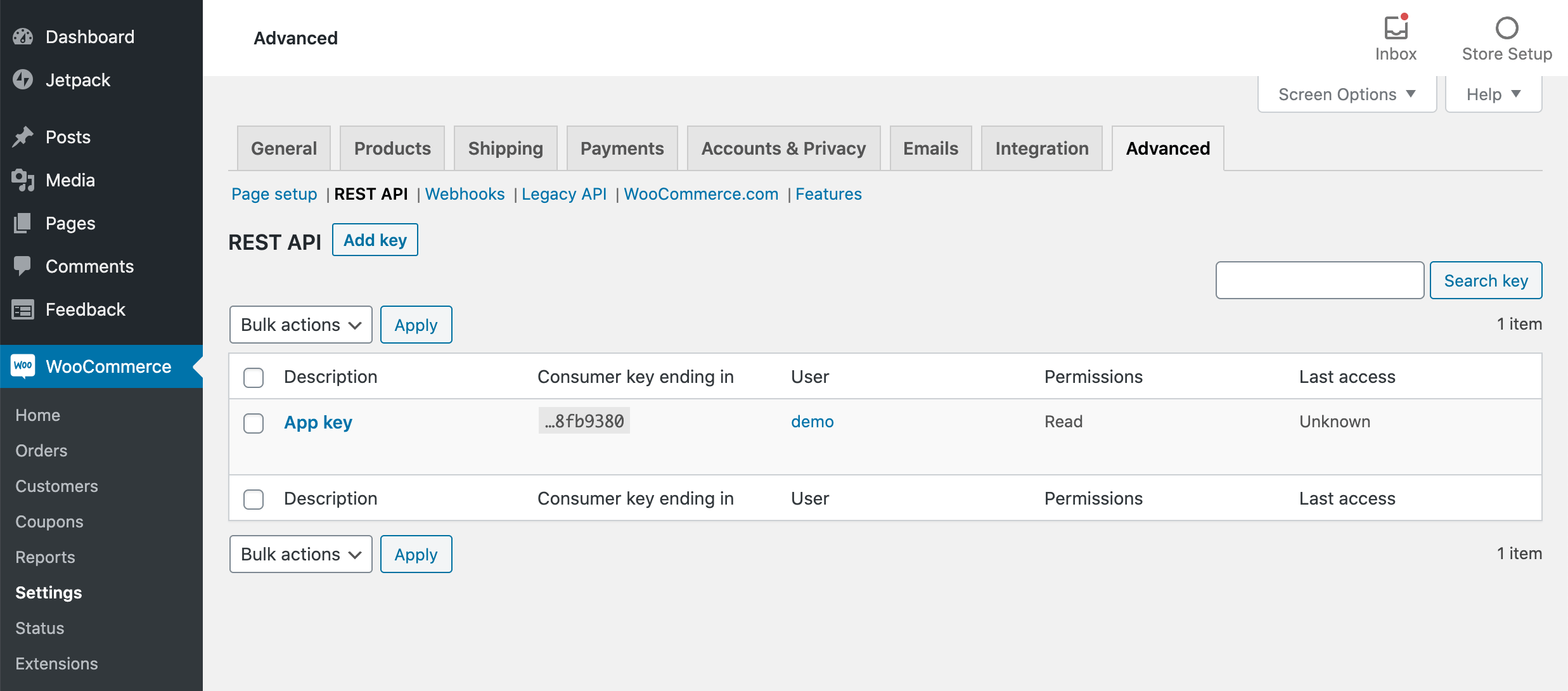 2. Click the "Add Key" button. In the next screen, add a description and select the WordPress user you would like to generate the key for.
3. Choose the level of access for this REST API key, which can be Read access, Write access, or Read/Write access. Then click the "Generate API Key"
button and WooCommerce will generate keys for the selected user.
4. Copy your `Consumer Key`.
2. Click the "Add Key" button. In the next screen, add a description and select the WordPress user you would like to generate the key for.
3. Choose the level of access for this REST API key, which can be Read access, Write access, or Read/Write access. Then click the "Generate API Key"
button and WooCommerce will generate keys for the selected user.
4. Copy your `Consumer Key`.
 #### Step 2: Finding Your WooCommerce Consumer Secret
1. From the previous step, securely store your `Consumer Secret` key.
#### Step 2: Finding Your WooCommerce Consumer Secret
1. From the previous step, securely store your `Consumer Secret` key.
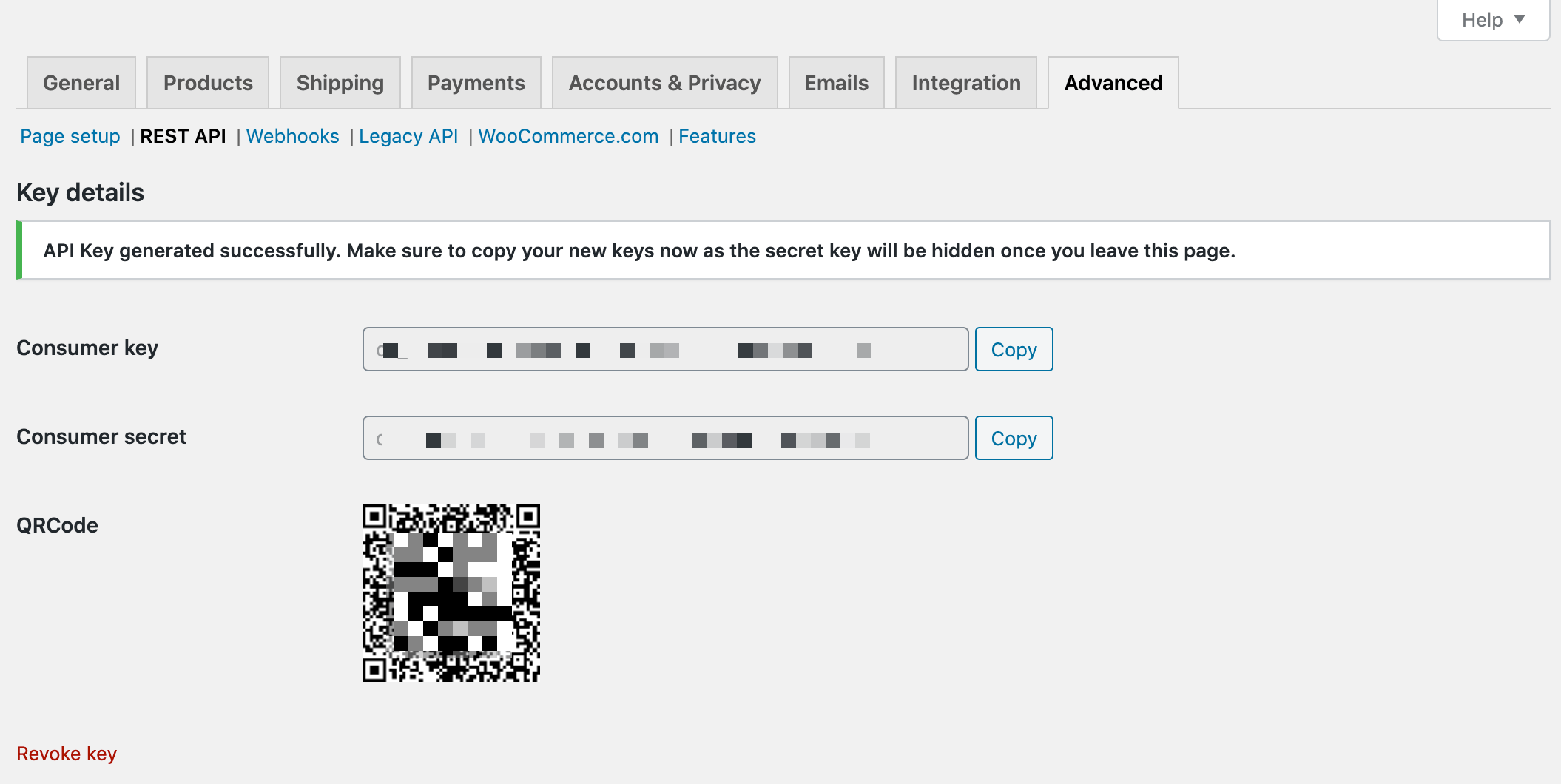 Important: Copy and store your Consumer Key securely, it will not be visible again once you leave this page.
#### Step 3: Connect Your WooCommerce Account
Important: Copy and store your Consumer Key securely, it will not be visible again once you leave this page.
#### Step 3: Connect Your WooCommerce Account
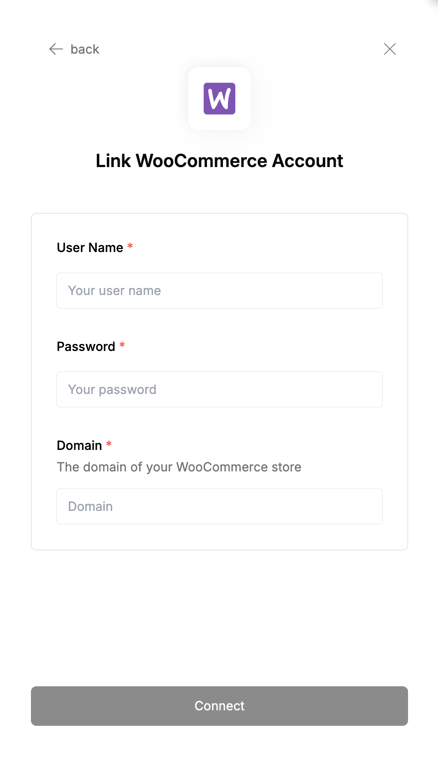 To authenticate using your API credentials, navigate to the WooCommerce authentication form.
Enter your credentials as follows:
* User Name: Your Consumer Key
* Password: Your Consumer Secret
* Domain: Your WordPress instance domain
Click "Connect" to complete the authentication.
To authenticate using your API credentials, navigate to the WooCommerce authentication form.
Enter your credentials as follows:
* User Name: Your Consumer Key
* Password: Your Consumer Secret
* Domain: Your WordPress instance domain
Click "Connect" to complete the authentication.