> ## Documentation Index
> Fetch the complete documentation index at: https://nango-marcin-get-deployments-docs.mintlify.site/llms.txt
> Use this file to discover all available pages before exploring further.
# SentrySentry (Public Integrations) - How do I link my account?
# Overview
To authenticate with Sentry (Public Integrations), you will need:
1. **Hostname** - The Hostname to your SentrySentry (Public Integrations) account.
2. **User ID** - The unique identifier of the user who will accept and install the public integration on Sentry’s integrations page.
This guide will walk you through finding your **Hostname** and **User ID** within Sentry.
### Prerequisites:
* You must have a Sentry account.
### Instructions:
#### Step 1: Finding Your Hostname
SentrySentry (Public Integrations) APIs use different hostname based on your region:
* Default hostname: `sentry.io`
* US region: `us.sentry.io`
* EU region: `eu.sentry.io`
[What Types of Data Are Stored Where](https://docs.sentry.io/organization/data-storage-location/#what-types-of-data-are-stored-where)
#### Step 2: Finding your User ID
1. Login to your [Sentry account](https://sentry.io/auth/login/).
2. Click on your profile in the top-right corner, then select **User Settings**.
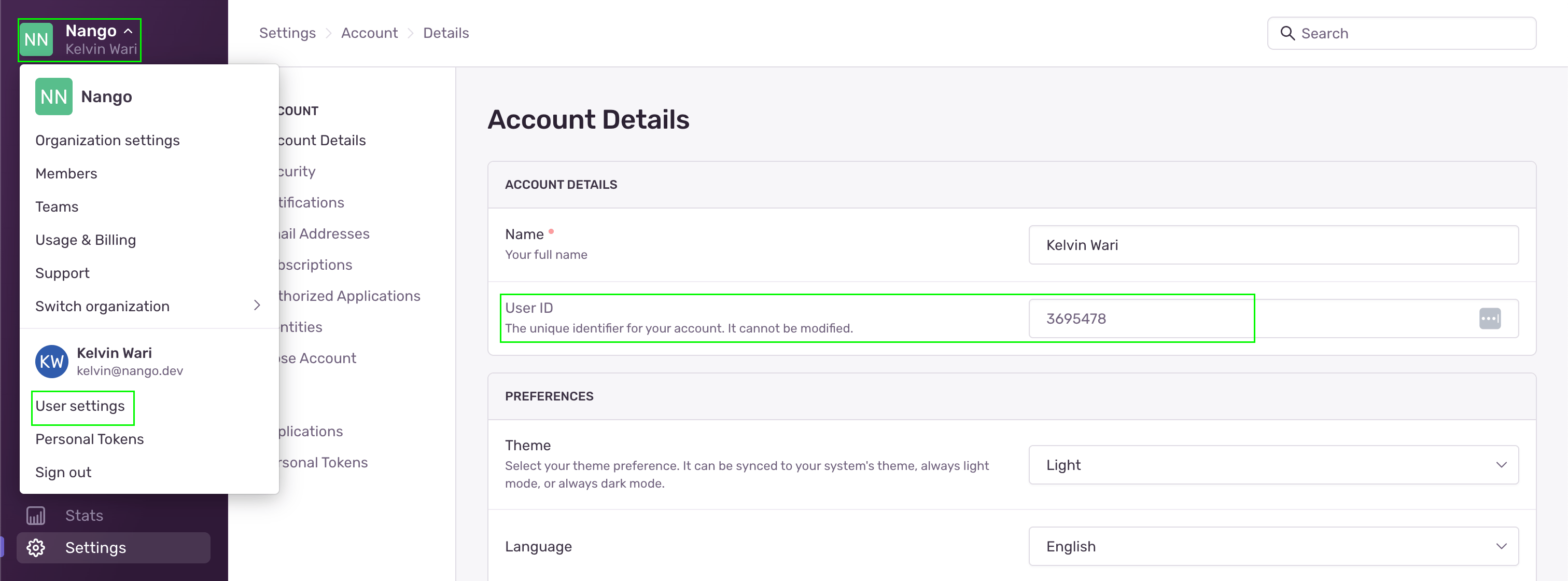 3. Under **Account Details**, you’ll find your **User ID**.
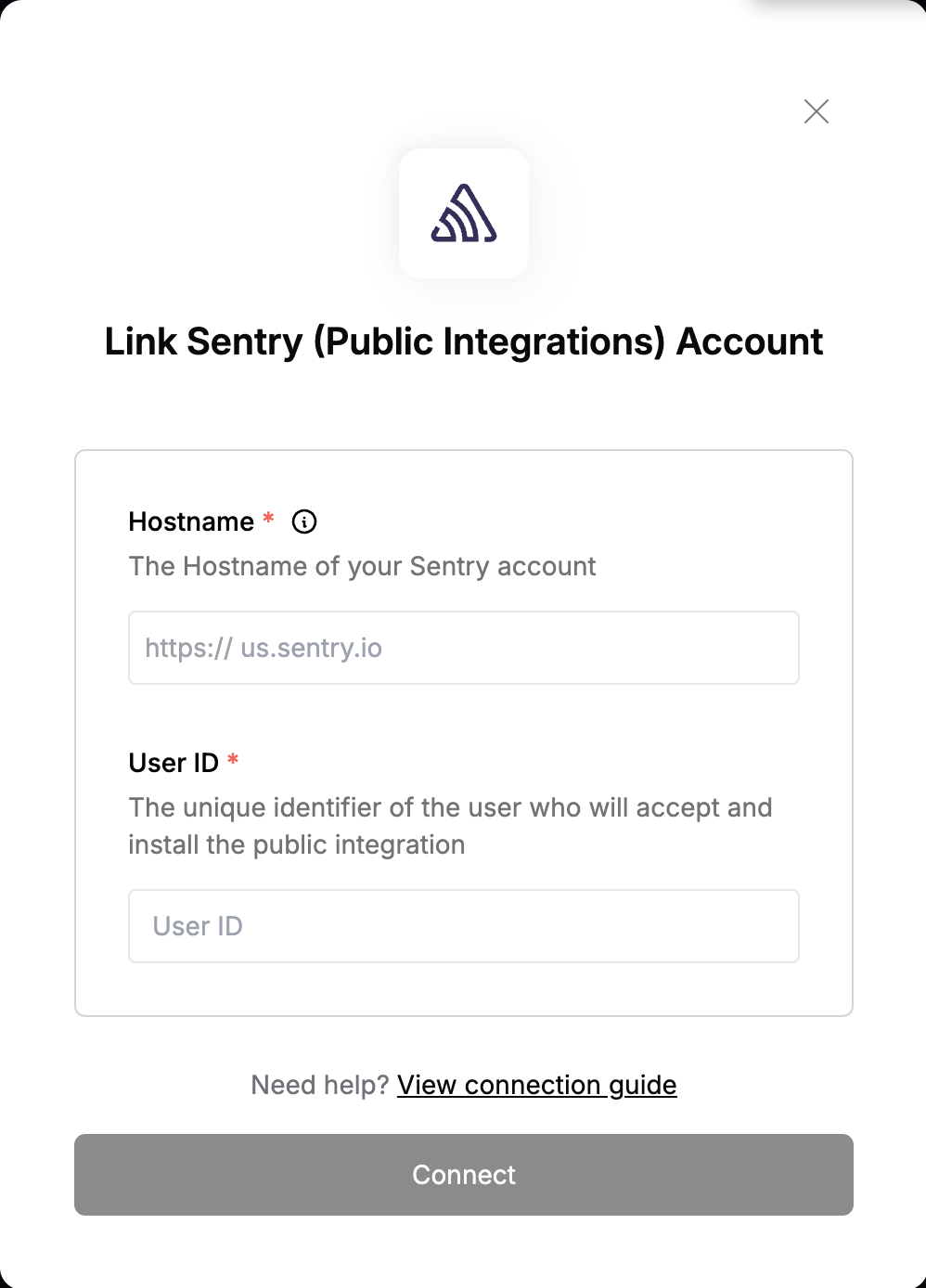
#### Step 3: Enter credentials in the Connect UI
Once you have your credentials:
1. Open the form where you need to authenticate with Sentry (Public Integrations).
2. Enter your **Hostname** and **User ID** in their designated fields.
3. Submit the form, and you should be successfully authenticated.
3. Under **Account Details**, you’ll find your **User ID**.
#### Step 3: Enter credentials in the Connect UI
Once you have your credentials:
1. Open the form where you need to authenticate with Sentry (Public Integrations).
2. Enter your **Hostname** and **User ID** in their designated fields.
3. Submit the form, and you should be successfully authenticated.
 #### Step 4: Install Sentry (Public Integrations)
1. Go to your Sentry dashboard.
2. Navigate to **Settings** > **Integrations**.
3. Find and select your integration from the list.
4. On the integration page, click **Accept & Install** in the top-right corner.
You are now connected to SentrySentry (Public Integrations).
#### Step 4: Install Sentry (Public Integrations)
1. Go to your Sentry dashboard.
2. Navigate to **Settings** > **Integrations**.
3. Find and select your integration from the list.
4. On the integration page, click **Accept & Install** in the top-right corner.
You are now connected to SentrySentry (Public Integrations).