> ## Documentation Index
> Fetch the complete documentation index at: https://nango-marcin-get-deployments-docs.mintlify.site/llms.txt
> Use this file to discover all available pages before exploring further.
# Drupal - How do I link my account?
# Overview
To authenticate with Drupal, you need:
1. **Base Url** - The base URL to your Drupal instance.
2. **Client ID** - A unique identifier for your client.
3. **Client Secret** - A confidential key used to authenticate the identity of the client.
4. **User Name** - The unique user name you use to log in to your Drupal account.
This guide will walk you through obtaining these credentials within Drupal.
### Prerequisites:
* You must have an account with Drupal.
### Instructions:
#### Step 1: Finding Your Drupal Base url
1. Login to your **Drupal** dashboard account. On you address bar, The URL will be similar to: `https://playground.miniorange.com/9d7e509/web/`. Your base url is the text after `https://`, which in this case would be `playground.miniorange.com/9d7e509/web`.
#### Step 2: Finding Your Drupal User name
1. Login to your **Drupal** dashboard account. Your **User name** will be displayed at the top next to the user icon.
 #### Step 3: Generating Your Drupal Client Credentials
1. Log in to your Drupal instance.
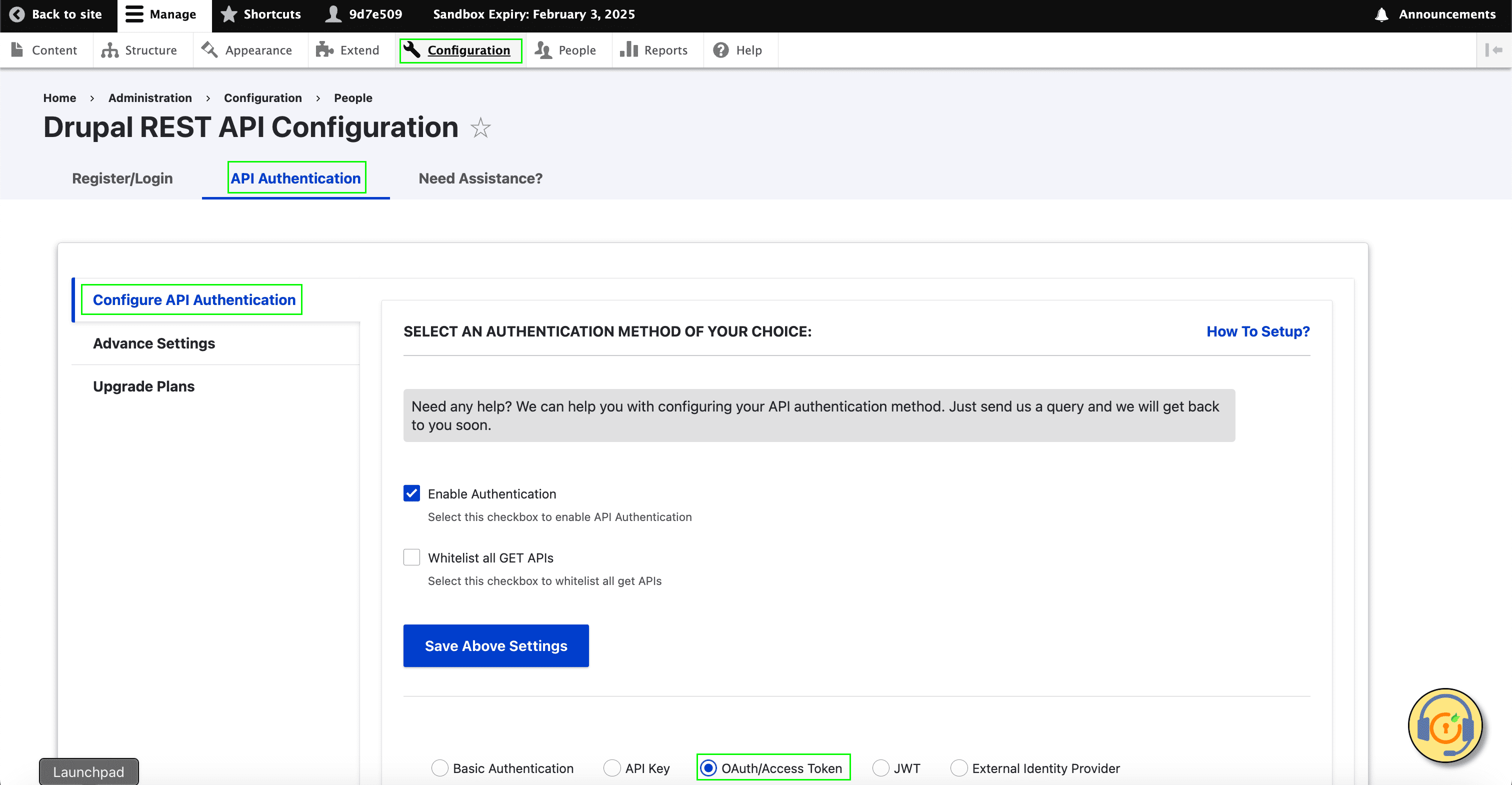
2. Go to **Configuration ‣ API Authentication ‣ Configure API Authentication**.
3. Click on the **OAuth/Access Token** radio button.
#### Step 3: Generating Your Drupal Client Credentials
1. Log in to your Drupal instance.
2. Go to **Configuration ‣ API Authentication ‣ Configure API Authentication**.
3. Click on the **OAuth/Access Token** radio button.
 4. Click on **Generate a new Client ID and Secret** button.
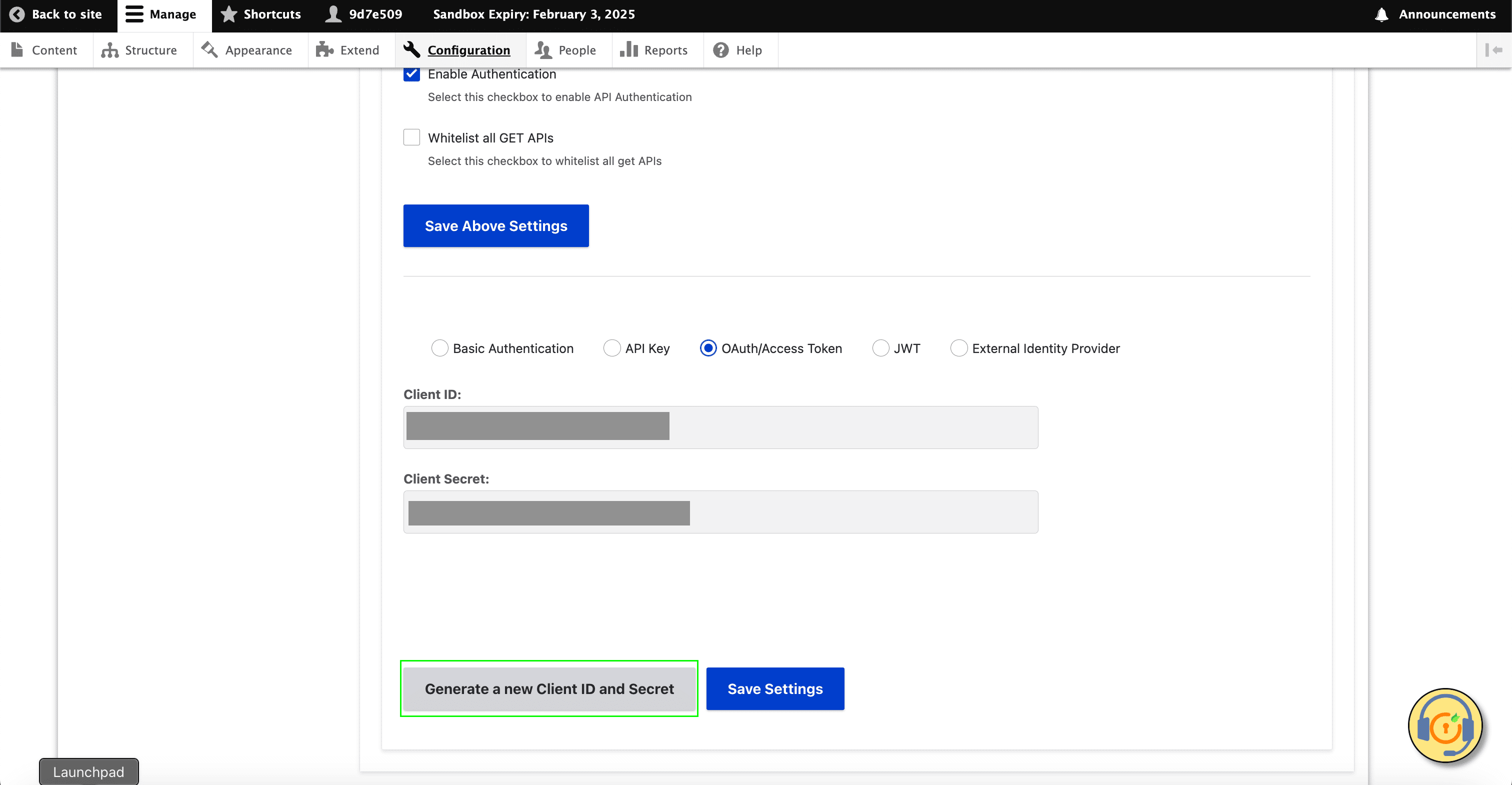 5. Click on **Save Settings** button to properly propagate your changes.
#### Step 3: Enter credentials in the Connect UI
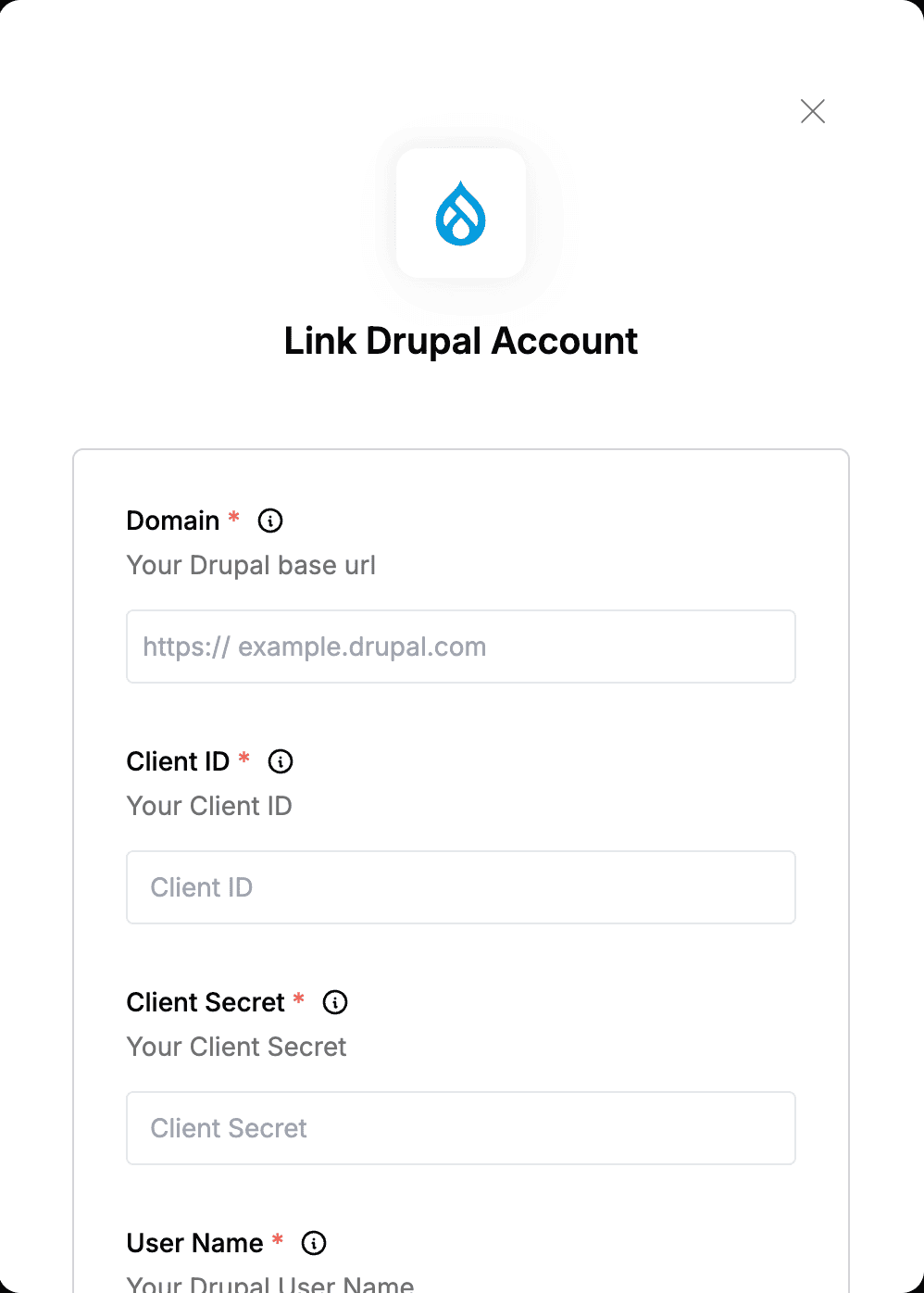
Once you have your **Base Url**, **Client ID**, **Client Secret** and **User Name**:
1. Open the form where you need to authenticate with Drupal.
2. Enter your **Base Url**, **Client ID**, **Client Secret** and **User Name** in their designated fields.
3. Submit the form, and you should be successfully authenticated.
5. Click on **Save Settings** button to properly propagate your changes.
#### Step 3: Enter credentials in the Connect UI
Once you have your **Base Url**, **Client ID**, **Client Secret** and **User Name**:
1. Open the form where you need to authenticate with Drupal.
2. Enter your **Base Url**, **Client ID**, **Client Secret** and **User Name** in their designated fields.
3. Submit the form, and you should be successfully authenticated.
 You are now connected to Drupal.