> ## Documentation Index
> Fetch the complete documentation index at: https://nango-marcin-get-deployments-docs.mintlify.site/llms.txt
> Use this file to discover all available pages before exploring further.
# Crisp - How do I link my account?
# Overview
To authenticate with Crisp, you need:
1. **Token Identifier** - The identifier part of your Crisp token keypair that authenticates your requests.
2. **Token Key** - The key part of your Crisp token keypair that authenticates your requests.
This guide will walk you through generating your token keypair in the Crisp Marketplace.
### Prerequisites:
* You must have a Crisp account.
* You need access to the Crisp Marketplace (this account is different from your main Crisp account).
### Instructions:
#### Step 1: Generating Your Token Keypair
1. Go to the [Crisp Marketplace](https://marketplace.crisp.chat/) and sign in or create an account.
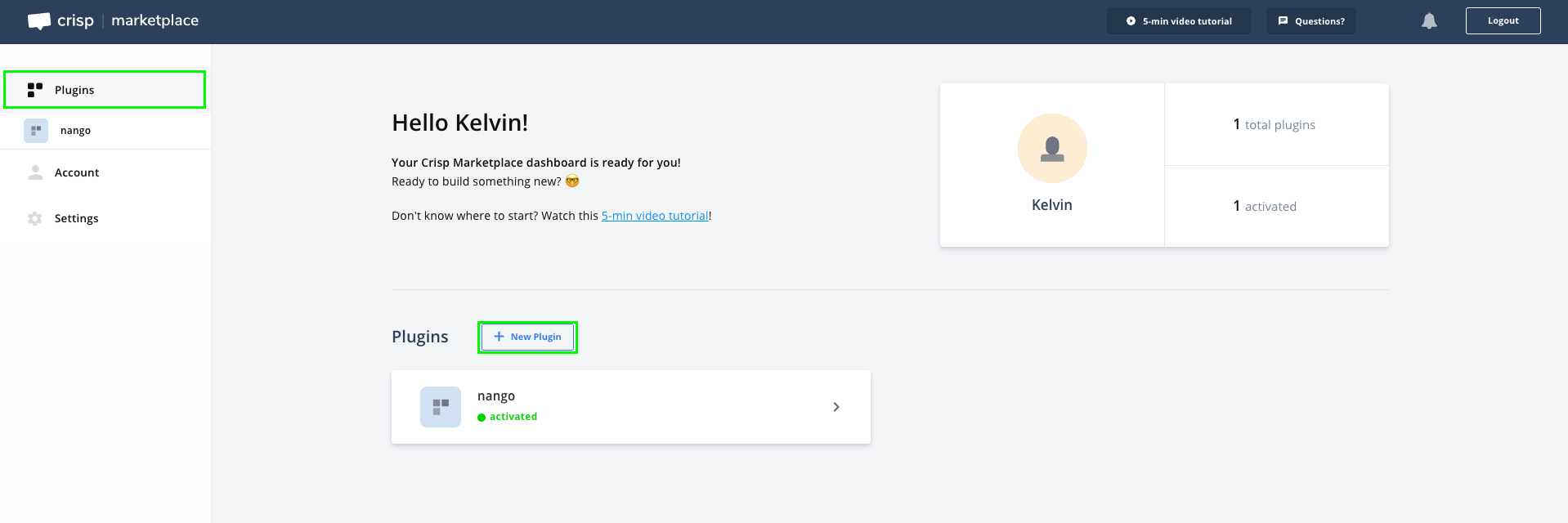
2. Once logged in, go to **Plugins** and click on the **New Plugin** button.
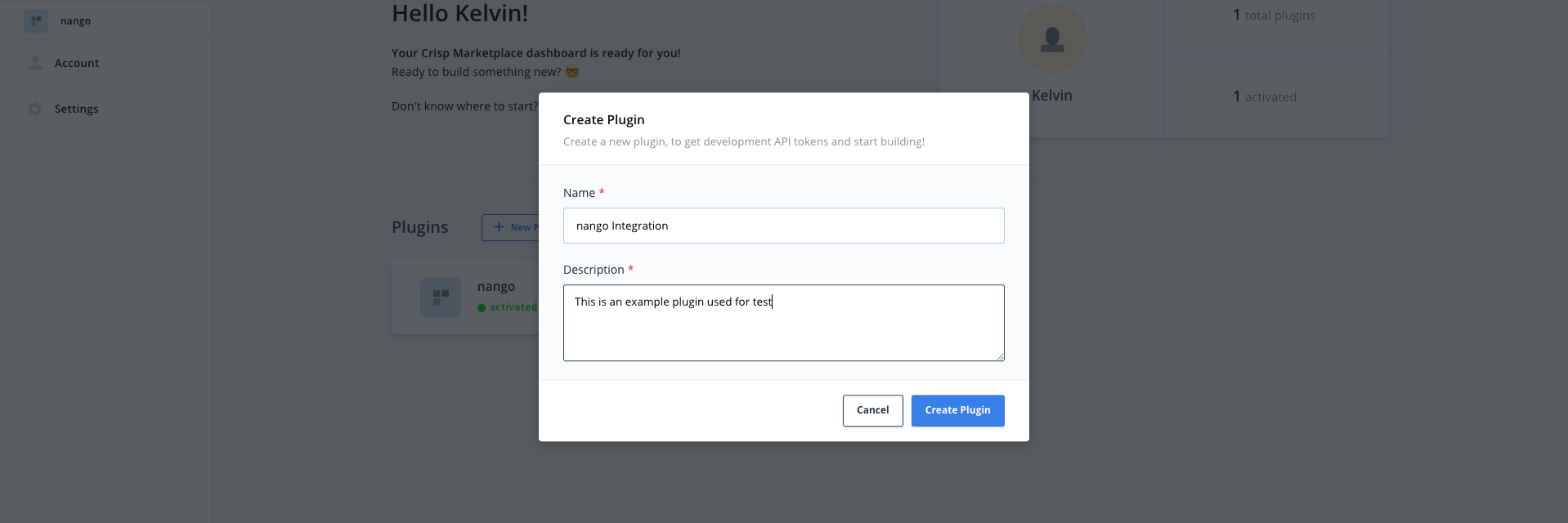
 3. Give your plugin a name and description, then click **Create Plugin**.
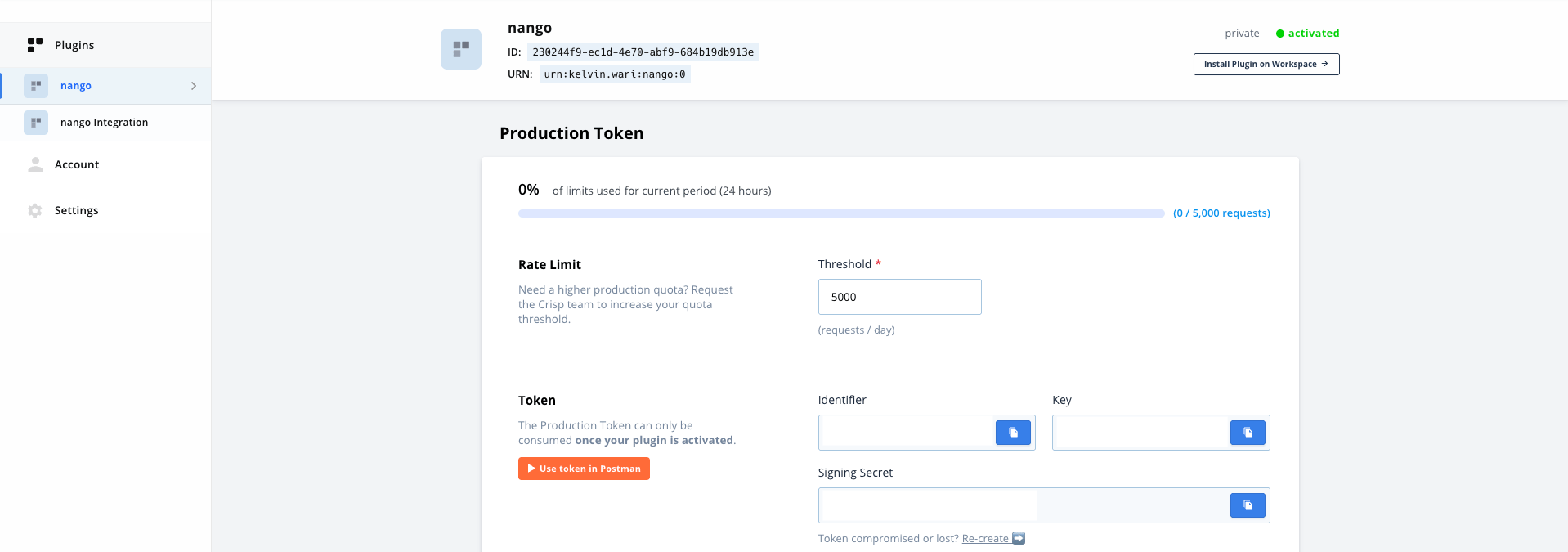
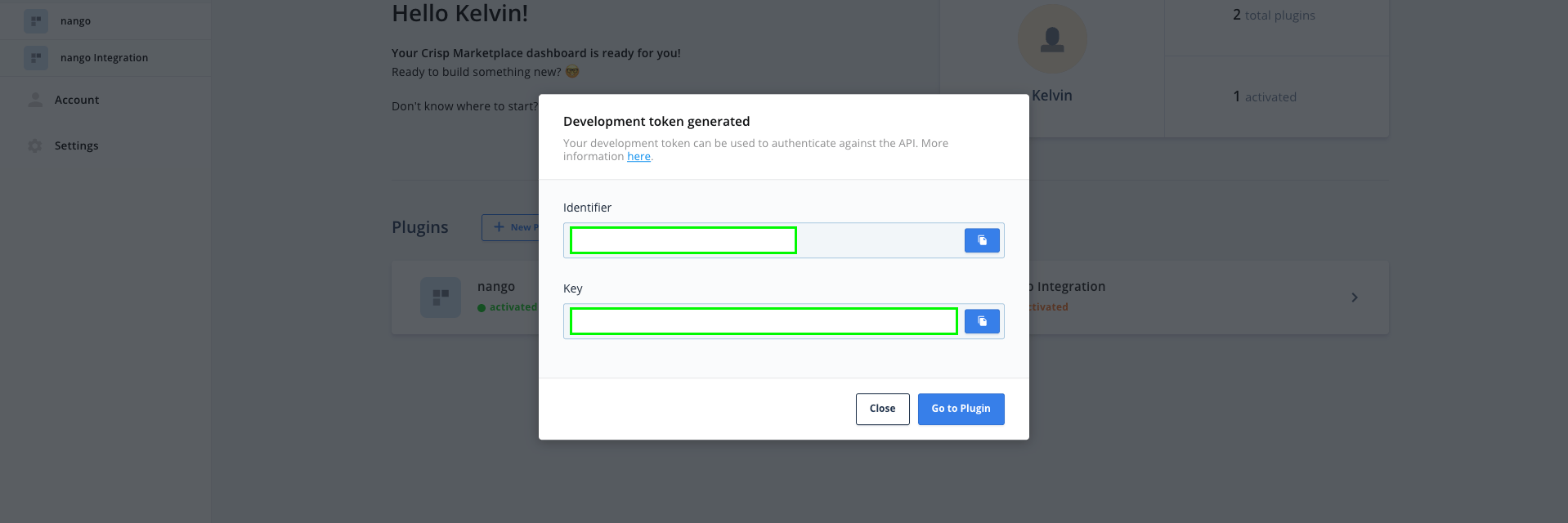 4. On the plugin page, go to the **Tokens** tab and scroll down to **Production**.
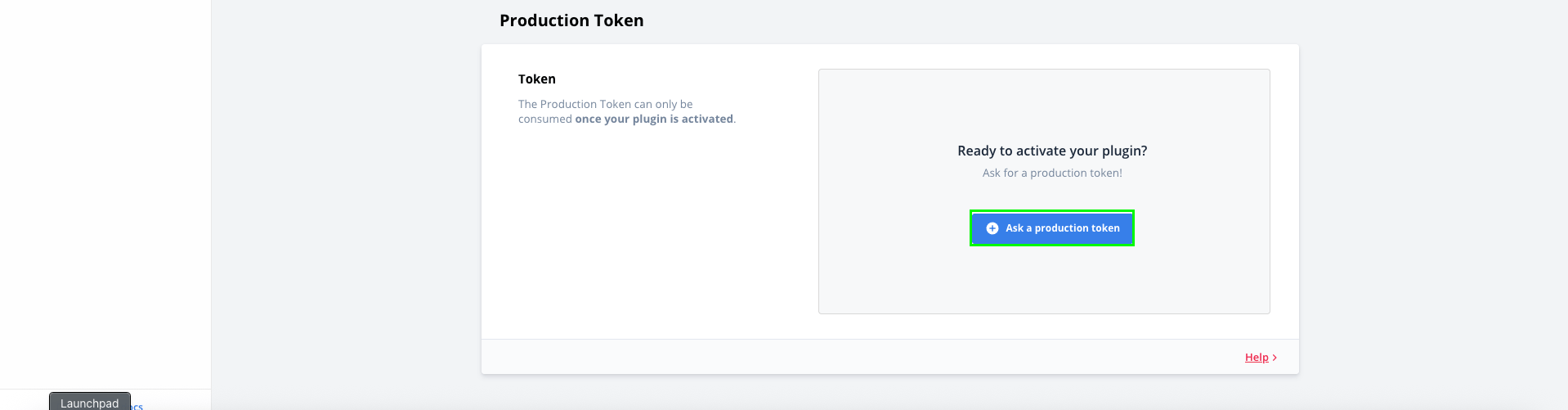
5. Click on **Ask a production token**, pick the **scopes** you require for your integration, and provide a **justification**.
4. On the plugin page, go to the **Tokens** tab and scroll down to **Production**.
5. Click on **Ask a production token**, pick the **scopes** you require for your integration, and provide a **justification**.
 6. Click on **Request production token**.
7. Wait for your submission to get approved (this can take a few minutes).
8. Once accepted, come back to the **Tokens** tab and copy your Production **Token Identifier** and **Token Key**.
6. Click on **Request production token**.
7. Wait for your submission to get approved (this can take a few minutes).
8. Once accepted, come back to the **Tokens** tab and copy your Production **Token Identifier** and **Token Key**.
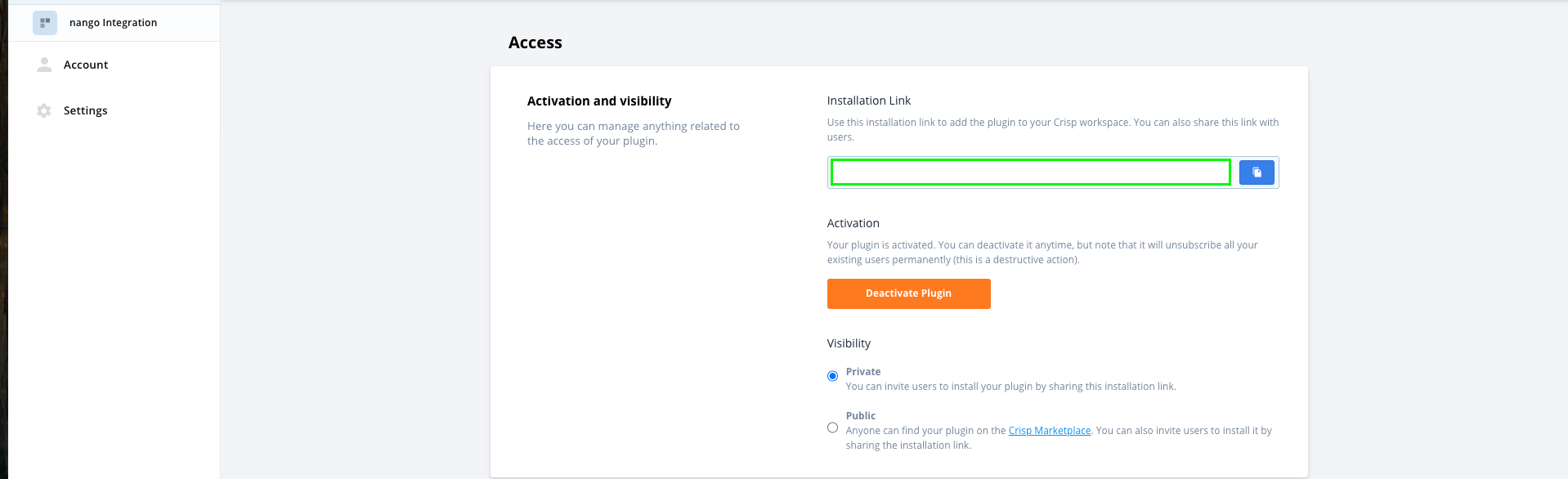
 9. Finally, install the plugin on all websites you need to use it for (using the private install link, provided in the **Settings** section under **Access**).
 #### Step 2: Enter credentials in the Connect UI
Once you have your **Token Keypair**:
1. Open the form where you need to authenticate with Crisp.
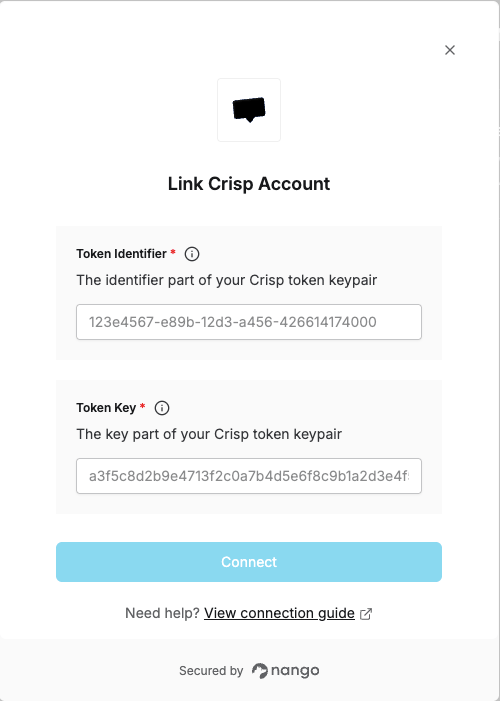
2. Enter your **Token Identifier** and **Token Key** in their designated fields.
3. Submit the form, and you should be successfully authenticated.
#### Step 2: Enter credentials in the Connect UI
Once you have your **Token Keypair**:
1. Open the form where you need to authenticate with Crisp.
2. Enter your **Token Identifier** and **Token Key** in their designated fields.
3. Submit the form, and you should be successfully authenticated.
 You are now connected to Crisp.