> ## Documentation Index
> Fetch the complete documentation index at: https://nango-marcin-get-deployments-docs.mintlify.site/llms.txt
> Use this file to discover all available pages before exploring further.
# Workday (Client Credentials) - How do I link my account?
# Overview
To authenticate with Workday using Client Credentials, you will need:
1. **Token Domain** - The hostname of your Workday tenant
2. **Tenant** - The tenant name of your Workday account
3. **Client ID** - Your Workday API Client ID
4. **Client Secret** - Your Workday API Client Secret
This guide will walk you through finding each of these values.
### Prerequisites
* An active Workday account with administrator access
* Access to register API clients for integrations
* OAuth 2.0 enabled on your Workday tenant
### Instructions
#### Step 1: Enable OAuth 2.0
1. In Workday, search for and open **Edit Tenant Setup – Security**.
2. Ensure **OAuth 2.0** is enabled.
#### Step 2: Finding your Token Domain
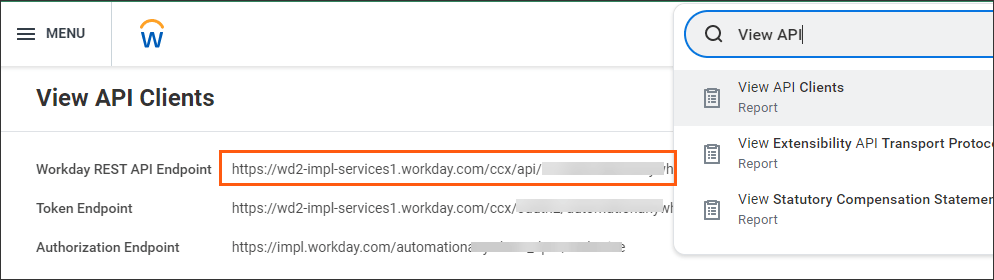
1. In your Workday homepage, search for and select **View API Clients**.
2. Locate the **Token Endpoint** field.
3. Your **Token Domain** is everything after `https://` and before `/ccx`.
* Example: If the endpoint is `https://wd2-impl-services1.workday.com/ccx/oauth2/acme/token`, your **Token Domain** is `wd2-impl-services1.workday.com`.
 #### Step 3: Finding your Tenant
In the same **Token Endpoint** field, your **Tenant** is the segment after `/oauth2/` and before `/token`.
* Example: If the endpoint is `https://wd2-impl-services1.workday.com/ccx/oauth2/acme/token`, your **Tenant** is `acme`.
#### Step 4: Create an Integration System User (ISU)
The ISU is a dedicated service account that acts as the subject of all access tokens issued to your API client. You will link it to the client in Step 6.
1. Search for and open **Create Integration System User**.
2. Enter a username and password. Set **Session Timeout Minutes** to `0` to prevent session expiration. Leave **Require New Password at Next Sign In** unchecked.
3. Search for **Create Security Group**, select **Integration System Security Group (Unconstrained)** as the type, and give it a name.
4. Assign the ISU to this security group via **Edit Integration System Security Group**.
5. Use **Maintain Permissions for Security Group** to add the domain security policies your integration requires (e.g., Worker Data: Workers).
6. Run **Activate Pending Security Policy Changes** to apply.
#### Step 5: Register an API Client
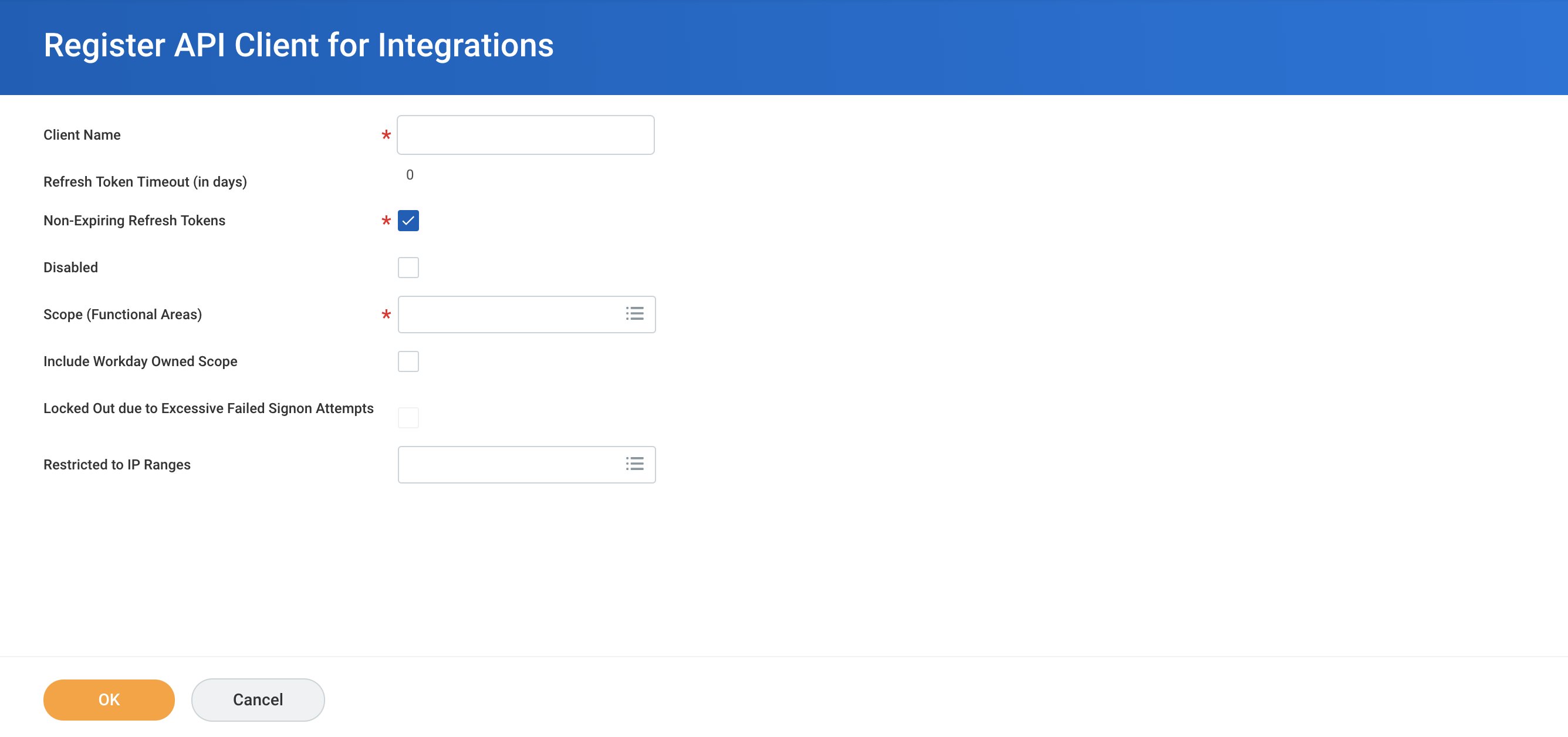
1. Search for and open **Register API Client for Integrations**.
2. Enter a name (e.g. `Nango Client Credentials`).
3. Set **Grant Type** to **Client Credentials**.
4. Select the functional area scopes your integration requires (e.g. Human Resources, Staffing, System). The ISU must also have access to the domain security policies that govern these scopes.
5. Click **OK** to save.
6. Copy the **Client ID** and **Client Secret** — the secret is shown only once.
#### Step 3: Finding your Tenant
In the same **Token Endpoint** field, your **Tenant** is the segment after `/oauth2/` and before `/token`.
* Example: If the endpoint is `https://wd2-impl-services1.workday.com/ccx/oauth2/acme/token`, your **Tenant** is `acme`.
#### Step 4: Create an Integration System User (ISU)
The ISU is a dedicated service account that acts as the subject of all access tokens issued to your API client. You will link it to the client in Step 6.
1. Search for and open **Create Integration System User**.
2. Enter a username and password. Set **Session Timeout Minutes** to `0` to prevent session expiration. Leave **Require New Password at Next Sign In** unchecked.
3. Search for **Create Security Group**, select **Integration System Security Group (Unconstrained)** as the type, and give it a name.
4. Assign the ISU to this security group via **Edit Integration System Security Group**.
5. Use **Maintain Permissions for Security Group** to add the domain security policies your integration requires (e.g., Worker Data: Workers).
6. Run **Activate Pending Security Policy Changes** to apply.
#### Step 5: Register an API Client
1. Search for and open **Register API Client for Integrations**.
2. Enter a name (e.g. `Nango Client Credentials`).
3. Set **Grant Type** to **Client Credentials**.
4. Select the functional area scopes your integration requires (e.g. Human Resources, Staffing, System). The ISU must also have access to the domain security policies that govern these scopes.
5. Click **OK** to save.
6. Copy the **Client ID** and **Client Secret** — the secret is shown only once.
 #### Step 6: Create a Client Credentials Mapping
This step links the API client to the ISU. Unlike the Refresh Token flow (where the ISU is associated via refresh token management), Client Credentials uses a dedicated mapping task.
1. Search for and open **Create Client Credentials Mapping**.
2. Enter the **Client ID** of the API client you registered in Step 5.
3. Select the **Integration System User** you created in Step 4.
4. Click **OK** to save.
#### Step 7: Enter credentials in the Connect UI
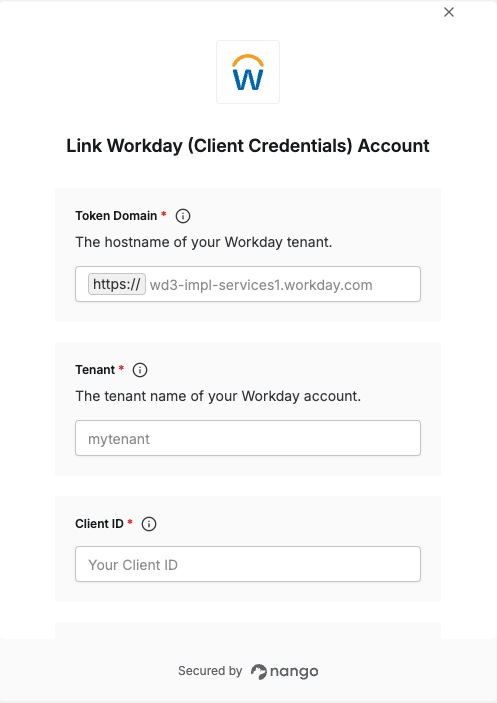
1. Open the form where you need to authenticate with Workday.
2. Enter your **Token Domain**, **Tenant**, **Client ID**, and **Client Secret** in their respective fields.
3. Submit the form.
#### Step 6: Create a Client Credentials Mapping
This step links the API client to the ISU. Unlike the Refresh Token flow (where the ISU is associated via refresh token management), Client Credentials uses a dedicated mapping task.
1. Search for and open **Create Client Credentials Mapping**.
2. Enter the **Client ID** of the API client you registered in Step 5.
3. Select the **Integration System User** you created in Step 4.
4. Click **OK** to save.
#### Step 7: Enter credentials in the Connect UI
1. Open the form where you need to authenticate with Workday.
2. Enter your **Token Domain**, **Tenant**, **Client ID**, and **Client Secret** in their respective fields.
3. Submit the form.
 You are now connected to Workday (Client Credentials).
***
You are now connected to Workday (Client Credentials).
***