> ## Documentation Index
> Fetch the complete documentation index at: https://nango-marcin-get-deployments-docs.mintlify.site/llms.txt
> Use this file to discover all available pages before exploring further.
# Shopify (Client Credentials) - How do I connect my store?
# Overview
To authenticate with Shopify using Client Credentials, you will need:
1. **Shopify Store Domain** - The subdomain of the store your app is installed in (e.g. `my-store` from `my-store.myshopify.com`)
2. **Client ID** - Your app's client ID from the Dev Dashboard
3. **Client Secret** - Your app's client secret from the Dev Dashboard
The client credentials grant is only available for Dev Dashboard apps installed in stores that you own. Public or custom apps must use the authorization code grant.
***
### Step 1: Generating your client credentials
1. Go to the [Shopify Dev Dashboard](https://dev.shopify.com/dashboard/) and sign in.
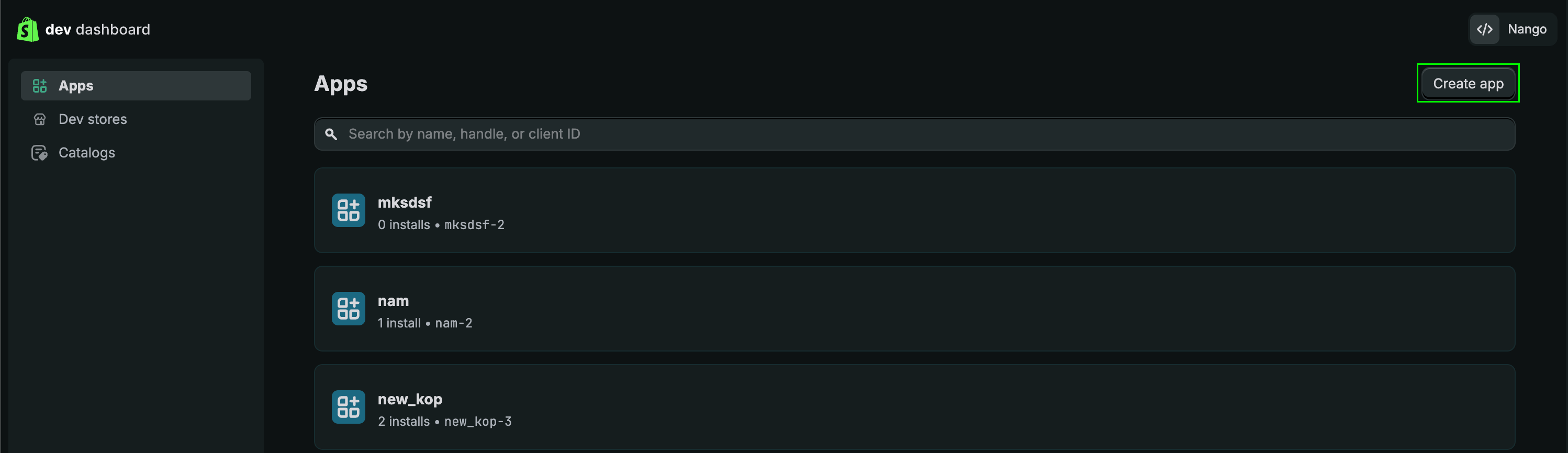
2. Click **Create app**.
 3. Give your app a name and click **Create**.
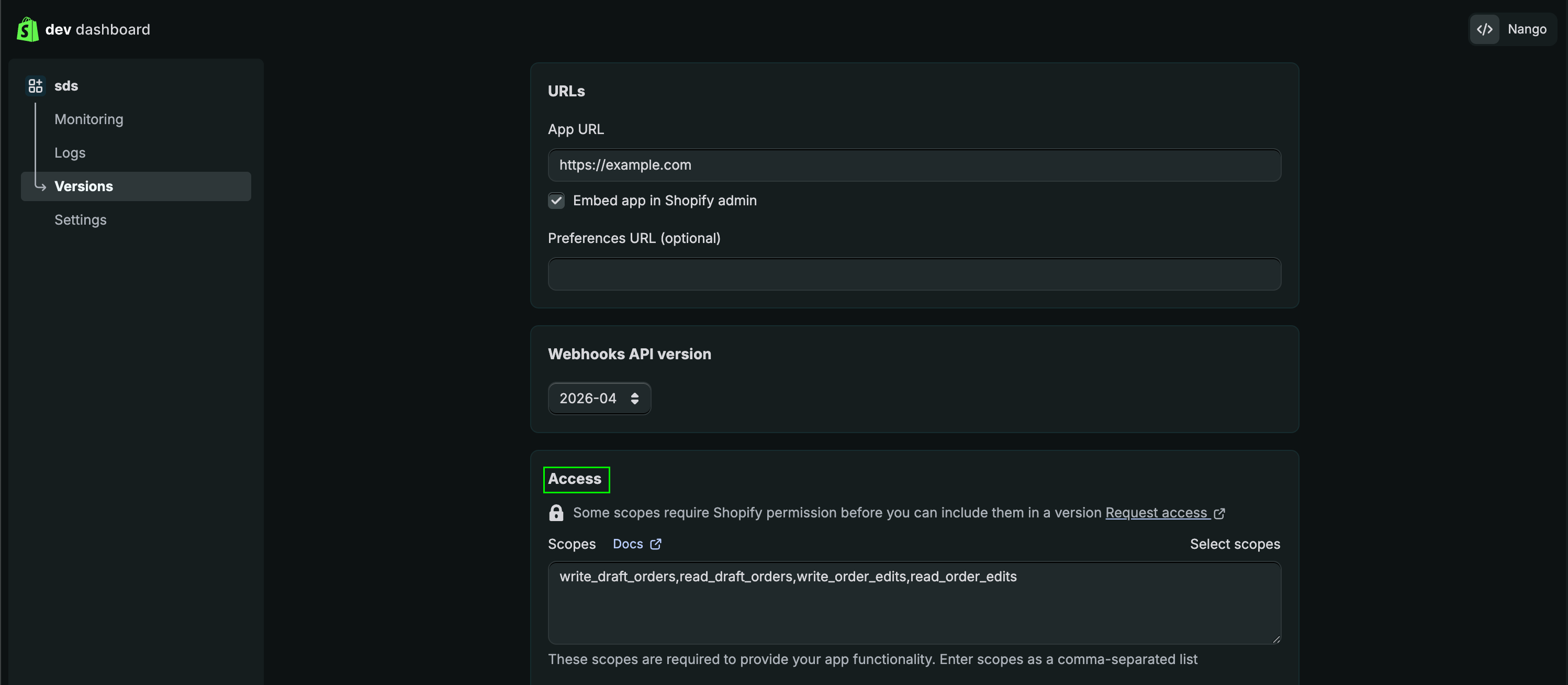
4. From the **Access** tab, select your preferred scopes.
3. Give your app a name and click **Create**.
4. From the **Access** tab, select your preferred scopes.
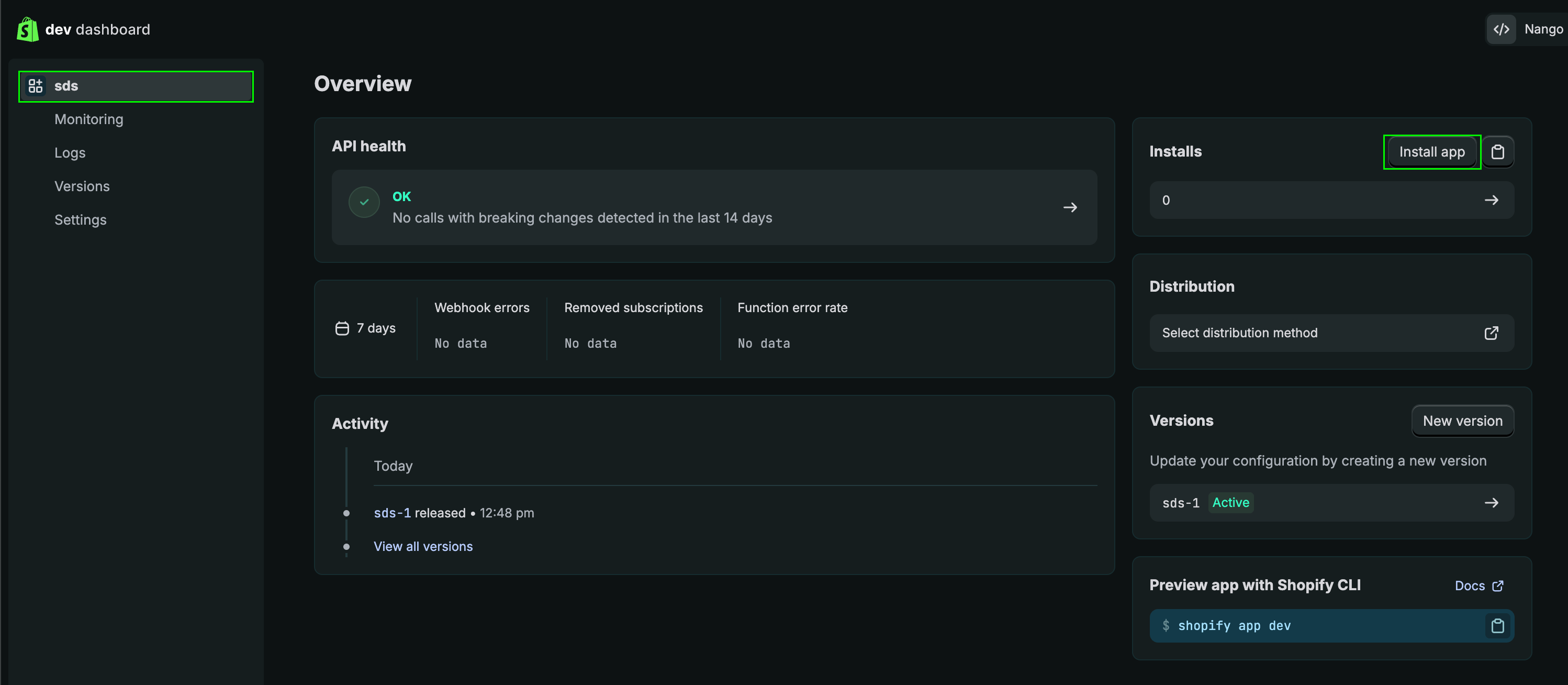
 5. Click the name of your application to go to the home page.
6. Click **Install app** and confirm the installation.
5. Click the name of your application to go to the home page.
6. Click **Install app** and confirm the installation.
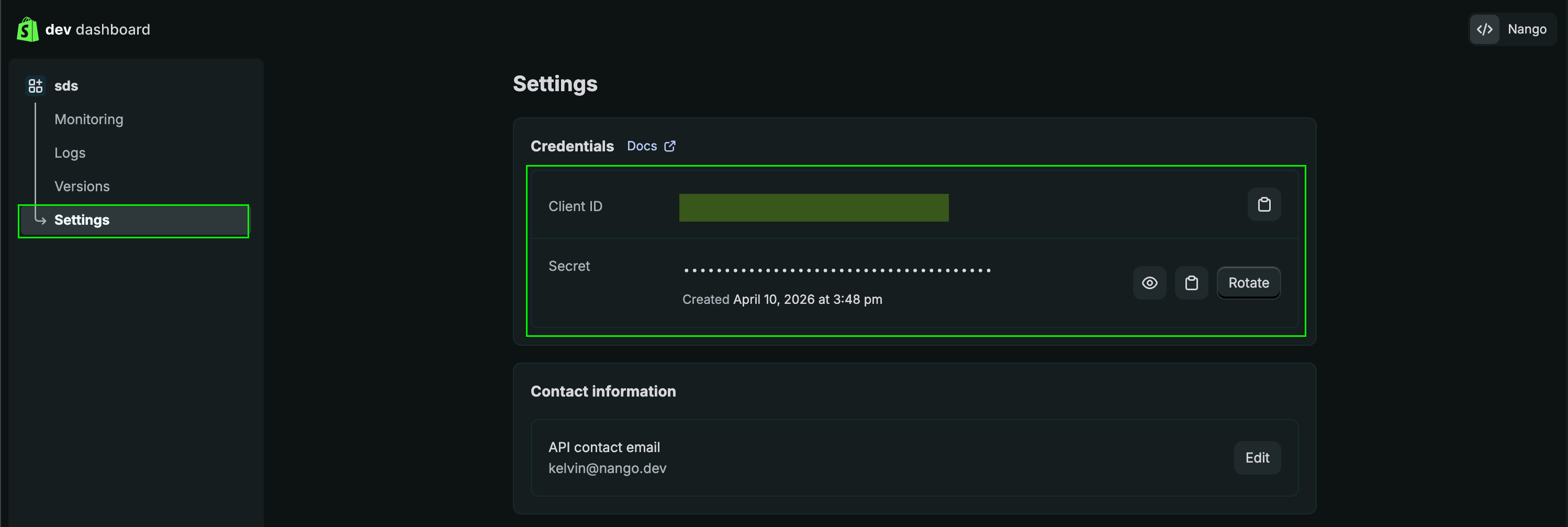
 7. Go to **Settings**.
8. Copy your **Client ID** and **Client Secret**.
7. Go to **Settings**.
8. Copy your **Client ID** and **Client Secret**.
 ### Step 2: Find your Shopify Store Domain
1. Your **Shopify Domain** is visible in the address bar when viewing your store. For example, in `https://admin.shopify.com/store/6nzh0y-y6`, the domain is `6nzh0y-y6`.
2. Alternatively, click your profile in the top right corner and select **All Stores**.
### Step 2: Find your Shopify Store Domain
1. Your **Shopify Domain** is visible in the address bar when viewing your store. For example, in `https://admin.shopify.com/store/6nzh0y-y6`, the domain is `6nzh0y-y6`.
2. Alternatively, click your profile in the top right corner and select **All Stores**.
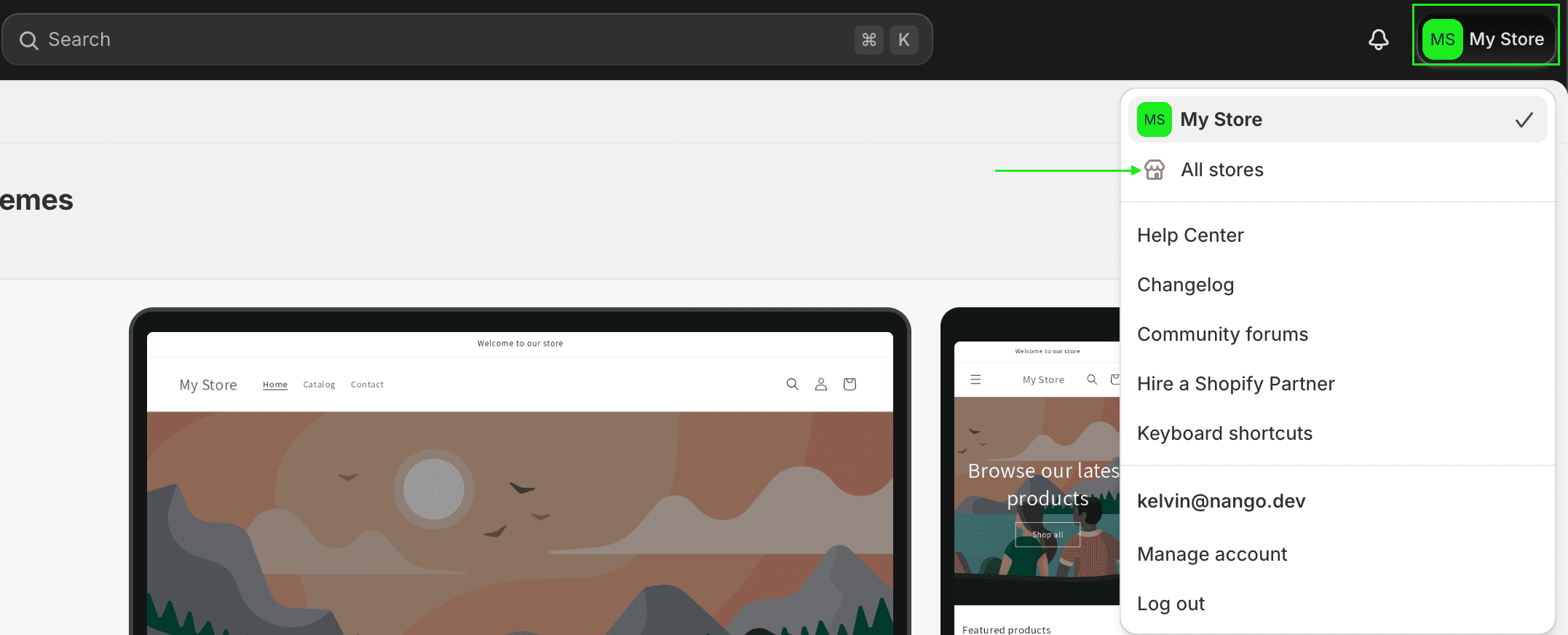 3. From the list, your **Shopify Domain** is the value shown before `myshopify.com`.
### Step 3: Enter credentials in the Connect UI
Once you have your credentials:
1. Open the form where you need to authenticate with Shopify (Client Credentials).
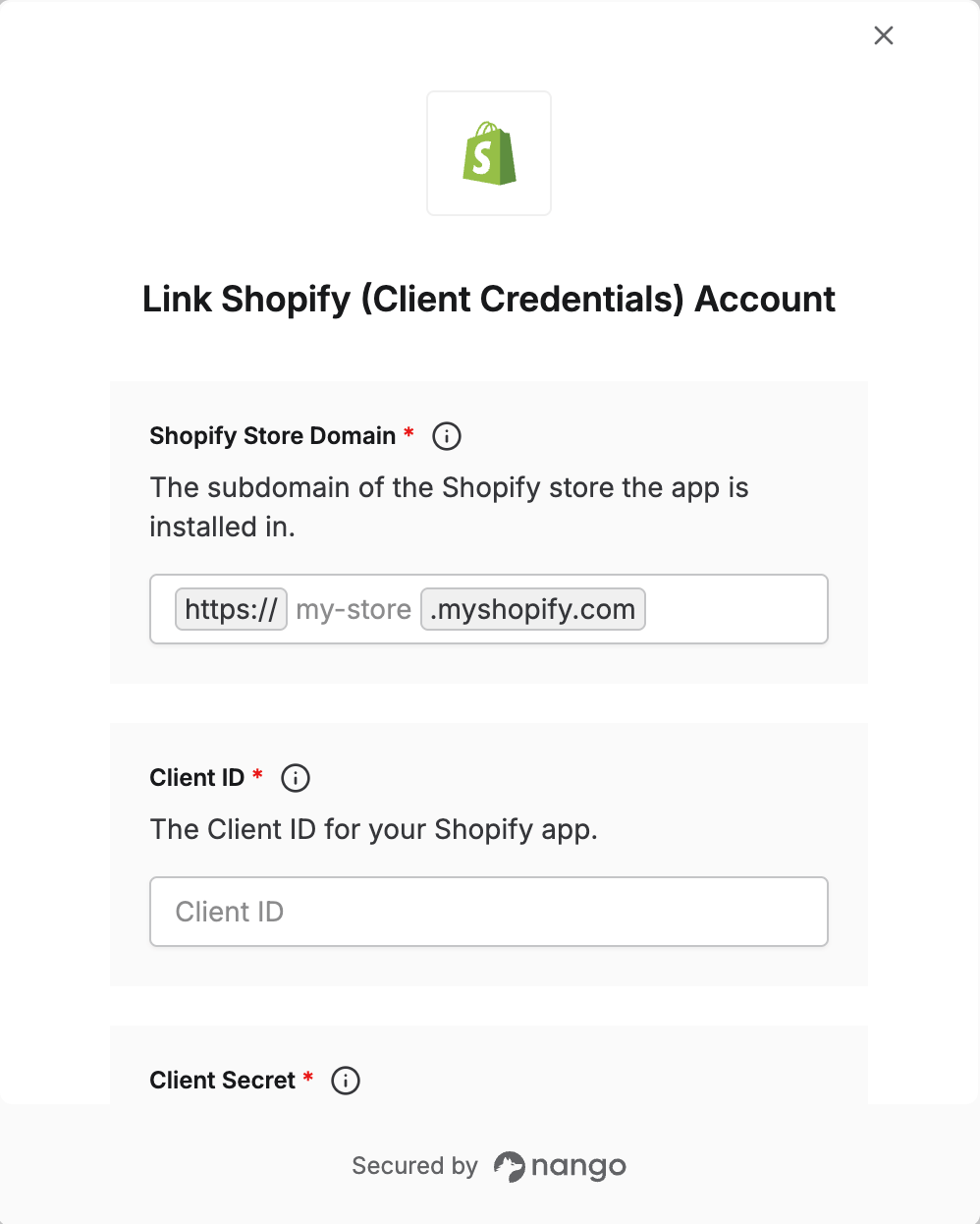
2. Enter your **Shopify Store Domain**, **Client ID**, and **Client Secret** in their respective fields.
3. Submit the form — you should now be successfully authenticated.
3. From the list, your **Shopify Domain** is the value shown before `myshopify.com`.
### Step 3: Enter credentials in the Connect UI
Once you have your credentials:
1. Open the form where you need to authenticate with Shopify (Client Credentials).
2. Enter your **Shopify Store Domain**, **Client ID**, and **Client Secret** in their respective fields.
3. Submit the form — you should now be successfully authenticated.
 You are now connected to Shopify (Client Credentials).