> ## Documentation Index
> Fetch the complete documentation index at: https://nango-marcin-get-deployments-docs.mintlify.site/llms.txt
> Use this file to discover all available pages before exploring further.
# Salesforce - How do I link my account?
# Overview
To authenticate with Salesforce, you will need:
1. **Hostname** (optional) - Your Salesforce instance hostname.
This guide will walk you through finding your hostname in Salesforce.
### Prerequisites:
* You must have a Salesforce account
### Instructions:
#### Step 1: Finding your Hostname
1. Log in to your Salesforce account.
2. Once logged in, click on your profile to view your hostname.
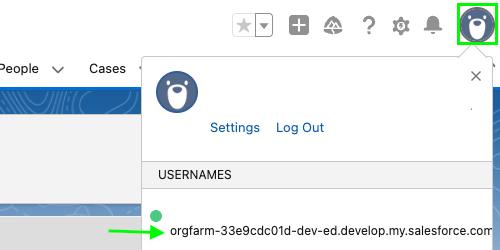 The hostname is optional. If not provided, Nango will use the default Salesforce login endpoint (`login.salesforce.com`). Providing a hostname ensures you connect to your specific Salesforce instance.
#### Step 2: Enter credentials in the Connect UI
Once you have your **Hostname** (optional):
1. Open the form where you need to authenticate with Salesforce.
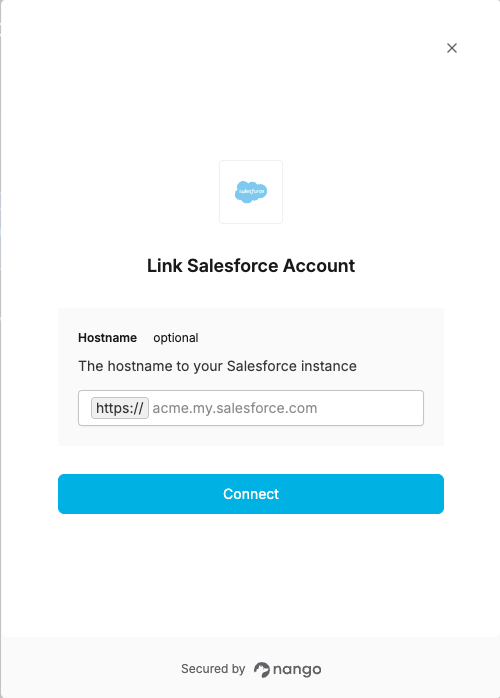
2. Enter your **Hostname** in the respective field.
3. Submit the form, and you should be successfully authenticated.
The hostname is optional. If not provided, Nango will use the default Salesforce login endpoint (`login.salesforce.com`). Providing a hostname ensures you connect to your specific Salesforce instance.
#### Step 2: Enter credentials in the Connect UI
Once you have your **Hostname** (optional):
1. Open the form where you need to authenticate with Salesforce.
2. Enter your **Hostname** in the respective field.
3. Submit the form, and you should be successfully authenticated.
 You are now connected to Salesforce.