> ## Documentation Index
> Fetch the complete documentation index at: https://nango-marcin-get-deployments-docs.mintlify.site/llms.txt
> Use this file to discover all available pages before exploring further.
# Rydoo - How do I link my account?
# Overview
To authenticate with Rydoo, you need:
1. **Client ID** – The public identifier for your Rydoo API client.
2. **Client Secret** – The secret that authenticates your client; treat it like a password and keep it secure.
This guide walks you through generating your Rydoo client credentials.
### Prerequisites
* API access must be enabled on your account. Contact your Customer Success Manager or email [connect@rydoo.com](mailto:connect@rydoo.com) to request this.
### Instructions
#### Step 1: Generate client credentials
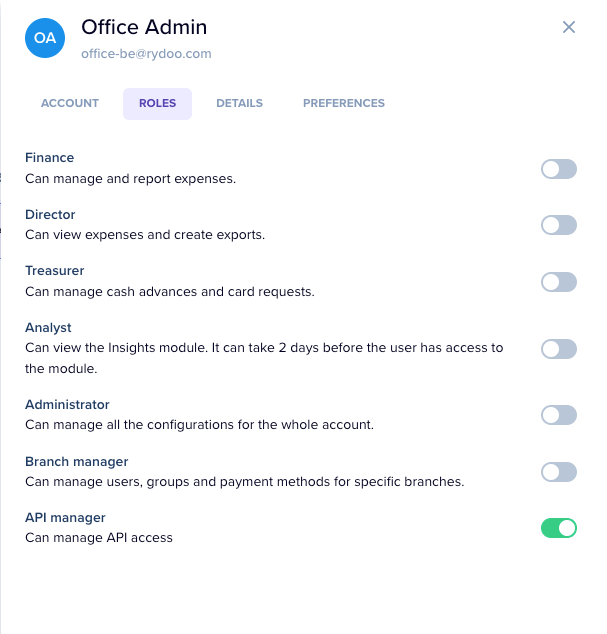
1. Go to **Admin** → **Users**, find the user responsible for API access, open their **Roles** settings, enable the **API Manager** toggle, and click **Save**.
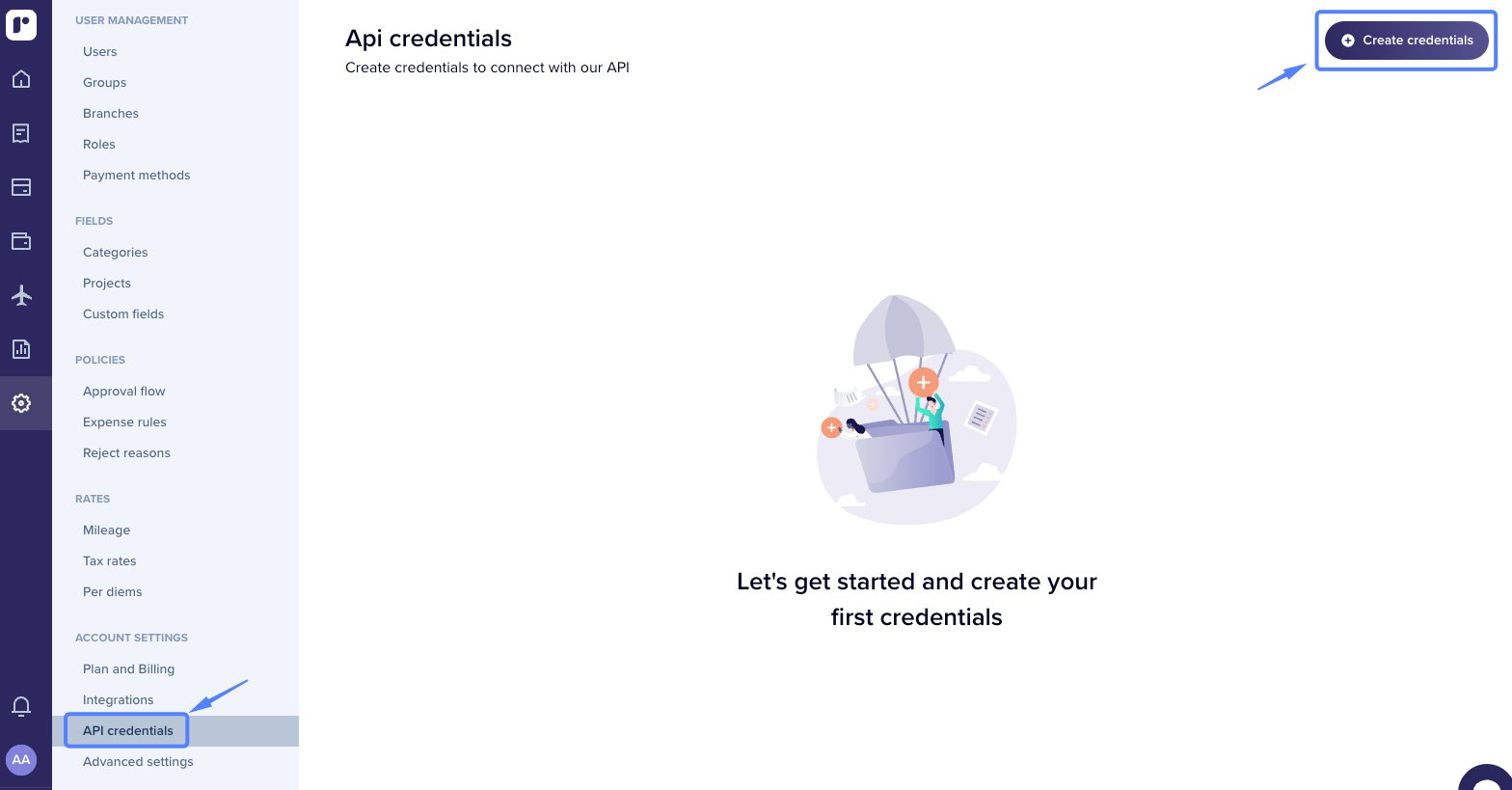
 2. Go to **Admin** → **API Credentials** and click **Create credentials**.
 3. The system will generate a **Client ID** and **Client Secret**. Set the scopes per data type (Full access, Read-only, Write-only, or Disabled), enter a **name** and **contact email**, then click **Save**.
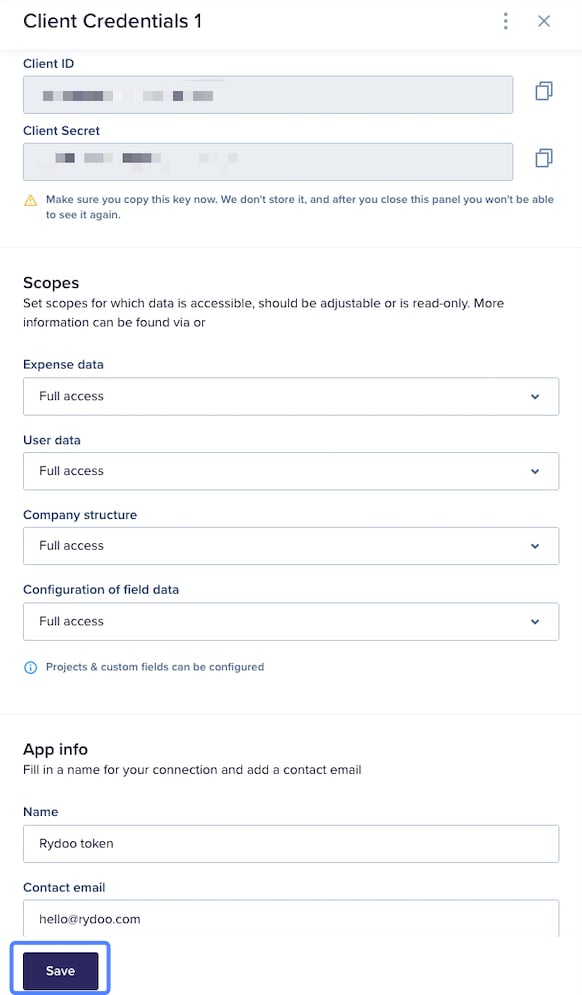 Copy and save the **Client Secret** immediately — it is only shown once. If you lose it, you can reset it from the same page and a new one will be generated.
#### Step 2: Enter credentials in Nango
1. Open the form where you need to authenticate with Rydoo.
2. Enter your **Client ID** and **Client Secret** in their respective fields.
3. Submit the form, and you should be successfully authenticated.
Copy and save the **Client Secret** immediately — it is only shown once. If you lose it, you can reset it from the same page and a new one will be generated.
#### Step 2: Enter credentials in Nango
1. Open the form where you need to authenticate with Rydoo.
2. Enter your **Client ID** and **Client Secret** in their respective fields.
3. Submit the form, and you should be successfully authenticated.
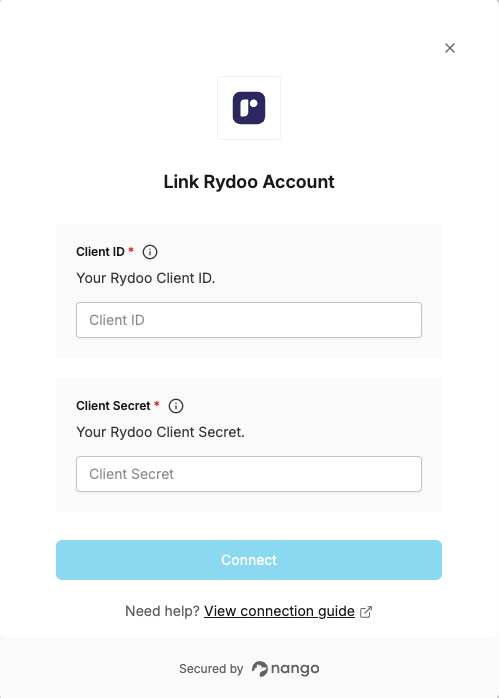 You are now connected to Rydoo.