> ## Documentation Index
> Fetch the complete documentation index at: https://nango-marcin-get-deployments-docs.mintlify.site/llms.txt
> Use this file to discover all available pages before exploring further.
# KnowBe4 - How do I link my account?
# Overview
To authenticate with KnowBe4, you need:
1. **Subdomain** - The subdomain to your API base URL.
2. **API key** - A key that grants Nango permission to interact with KnowBe4's API resources and services.
This guide will walk you through obtaining both the **API Key** and **Subdomain** within KnowBe4.
### Prerequisites:
* You must have an account with KnowBe4.
### Instructions:
#### Step 1: Finding Your Subdomain
1. Log in to your KnowBe4 account in your web browser.
2. Check the address bar at the top of your browser window.
* Compare your address with the following table to determine the **required subdomain** you must use:
| **Web App URL** | **Web App Subdomain** | **Required Subdomain** |
| :--------------------- | :-------------------- | :--------------------- |
| `training.knowbe4.com` | `training` | `us.api` |
| `eu.knowbe4.com` | `eu` | `eu.api` |
| `ca.knowbe4.com` | `ca` | `ca.api` |
| `uk.knowbe4.com` | `uk` | `uk.api` |
| `de.knowbe4.com` | `de` | `de.api` |
#### Step 2: Generating Your KnowBe4 API Key
KnowBe4 has separate API keys depending on which APIs you intend to use. Generate the key that matches your needs:
* **Reporting API key** — for accessing reporting data (e.g. training store purchases, phishing campaigns, user activity).
* **User Event API key** — for accessing user event data. Must be generated separately in the [User Event API Management Console](https://training.knowbe4.com/app/api_tokens/user_event/keys).
To generate a **Reporting API key**:
1. **Log in** to your KnowBe4 account as admin.
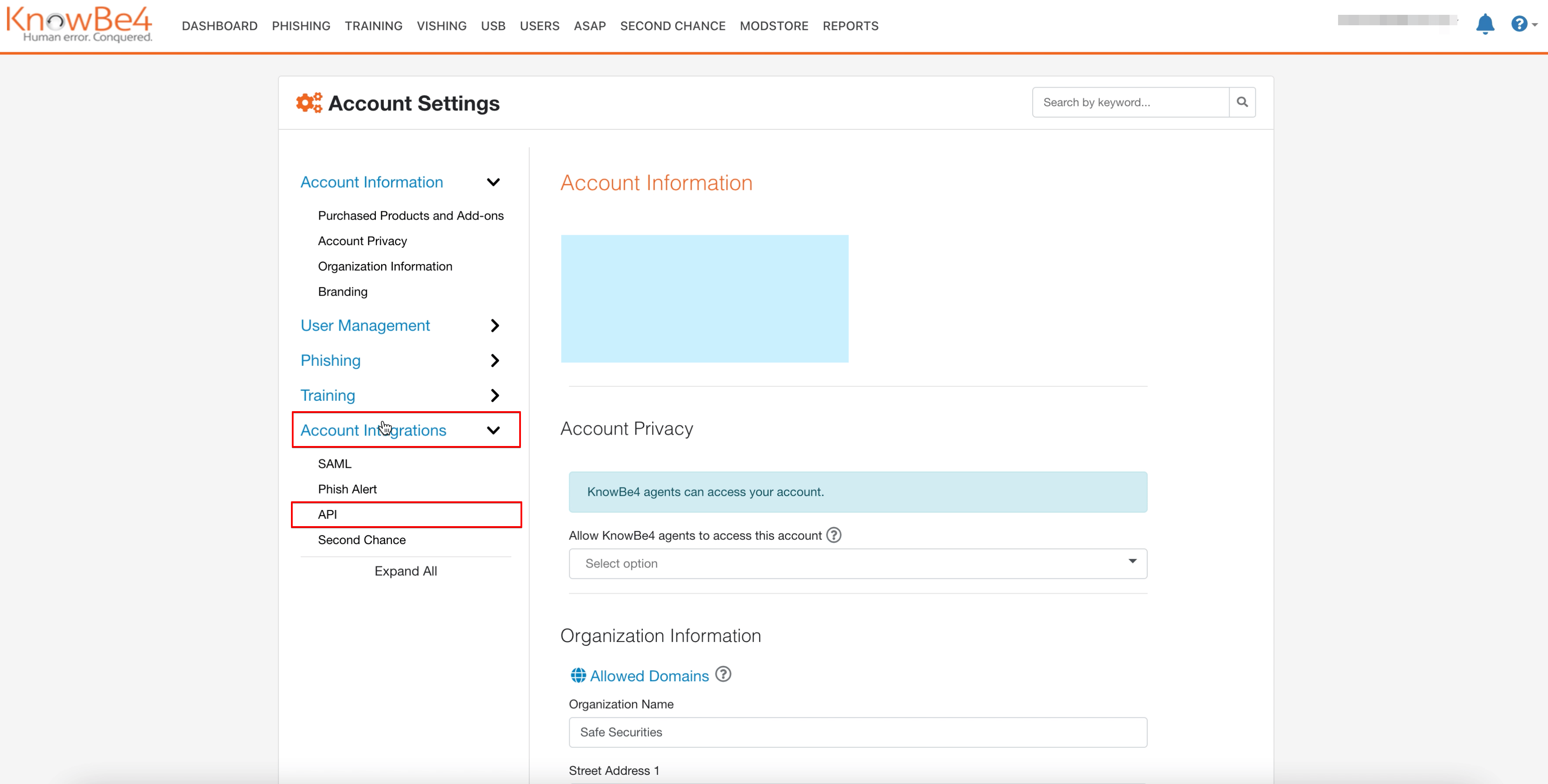
2. Go to **Account Settings**.
3. Click **Account Integrations** from the left menu.
4. Click the **API** option.
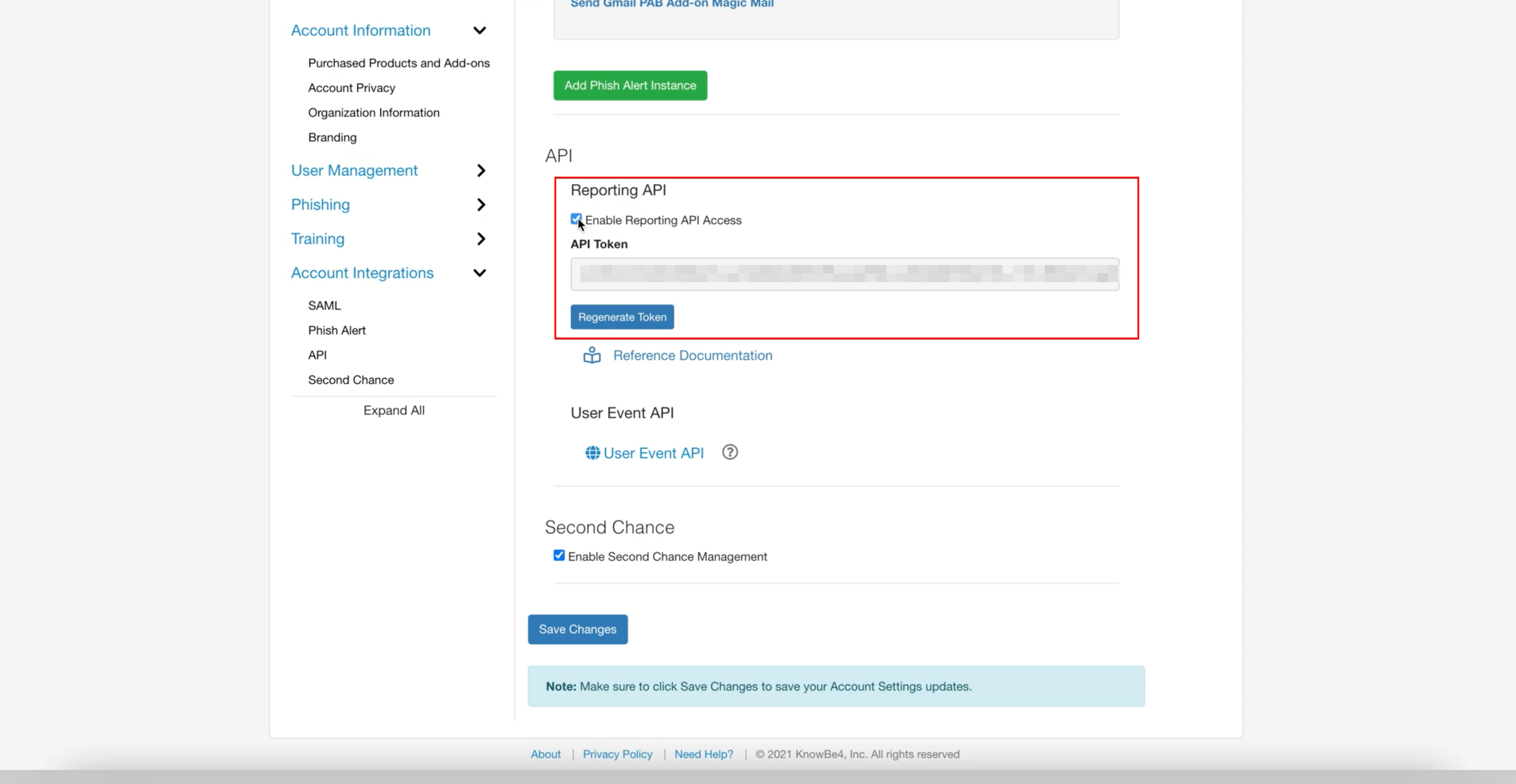
 5. Mark the **Enable Reporting API Access** checkbox.
6. The system generates an **API Key**.
5. Mark the **Enable Reporting API Access** checkbox.
6. The system generates an **API Key**.
 Reporting APIs and User Event APIs do not share an API key. Use the key that matches the endpoints you plan to call.
#### Step 3: Enter credentials in the Connect UI
Once you have both your **Subdomain** and **API key**:
1. Open the form where you need to authenticate with KnowBe4.
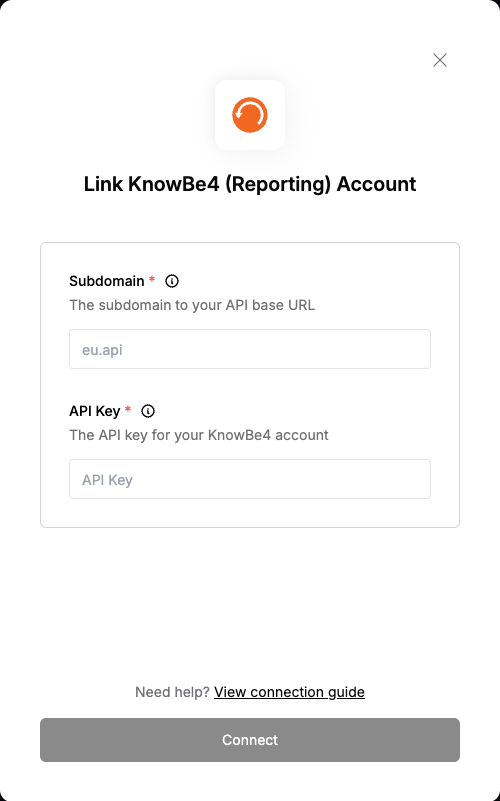
2. Enter your **Subdomain** and **API key** in their respective fields.
3. Submit the form, and you should be successfully authenticated.
Reporting APIs and User Event APIs do not share an API key. Use the key that matches the endpoints you plan to call.
#### Step 3: Enter credentials in the Connect UI
Once you have both your **Subdomain** and **API key**:
1. Open the form where you need to authenticate with KnowBe4.
2. Enter your **Subdomain** and **API key** in their respective fields.
3. Submit the form, and you should be successfully authenticated.
 You are now connected to KnowBe4.