> ## Documentation Index
> Fetch the complete documentation index at: https://nango-marcin-get-deployments-docs.mintlify.site/llms.txt
> Use this file to discover all available pages before exploring further.
# Hex - How do I link my account?
# Overview
To authenticate with Hex, you will need:
1. **Subdomain** – Your Hex subdomain.
2. **API Token** – A personal access token or workspace token that grants Nango permission to interact with the Hex API on your behalf.
This guide explains how to obtain both from Hex.
### Prerequisites
* An active Hex account with Editor or higher role (for personal access tokens), or Admin role (for workspace tokens).
### Instructions
#### Step 1: Creating your API token
1. Log in to your [Hex](https://app.hex.tech) account.
2. Click the settings button.
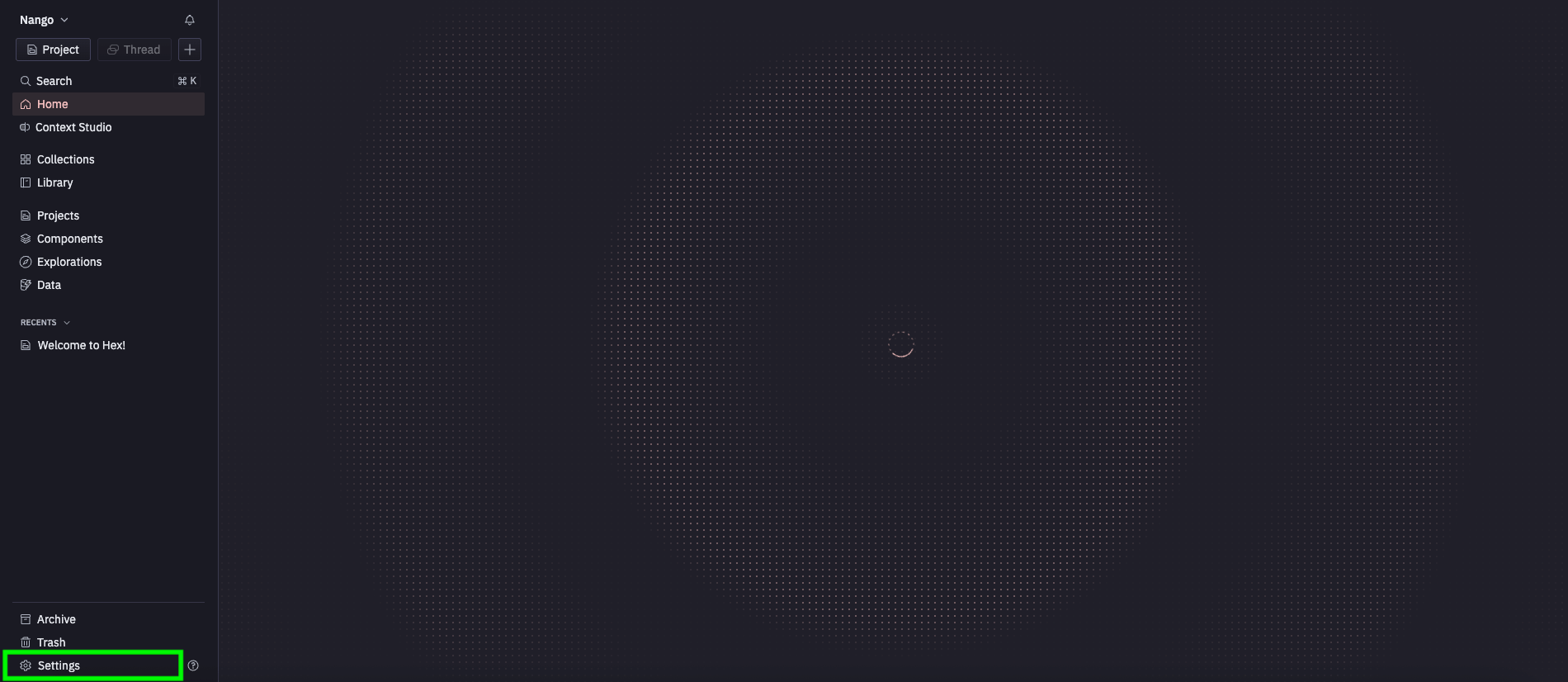 3. Click the **API Keys** button.
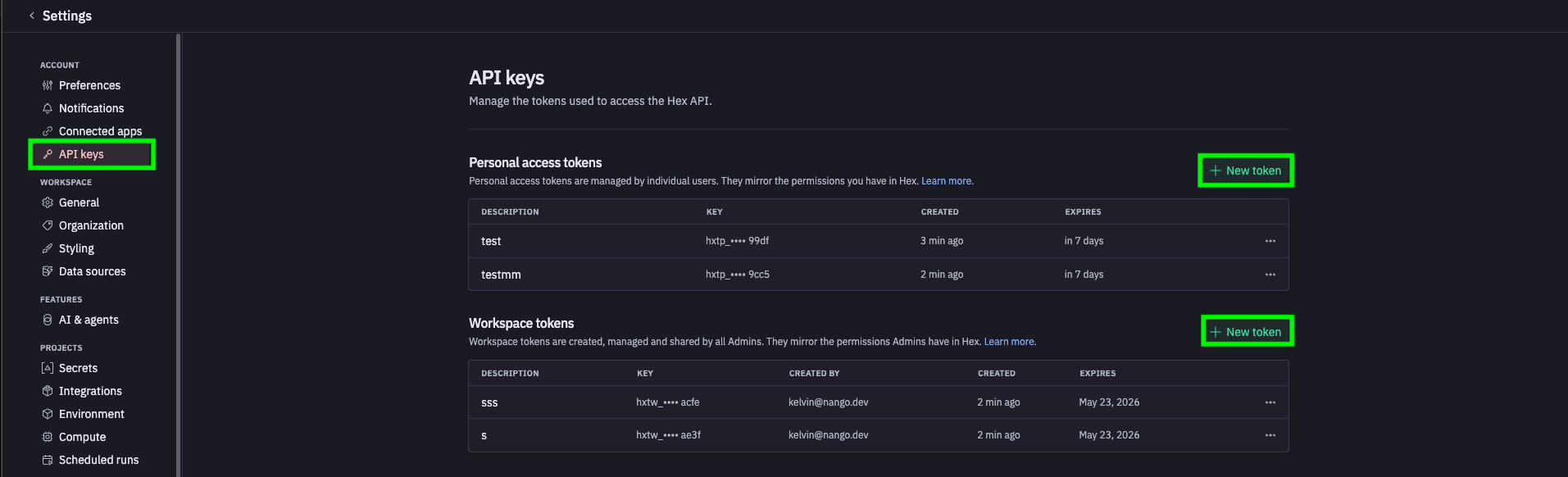 4. Choose the token type, click **New Token**, and fill in the form.
* **Personal access tokens** (prefix `hxtp_`) inherit your own permissions and require an expiration date.
* **Workspace tokens** (prefix `hxtw_`) are managed by admins, can be set to never expire, and support different permission scopes.
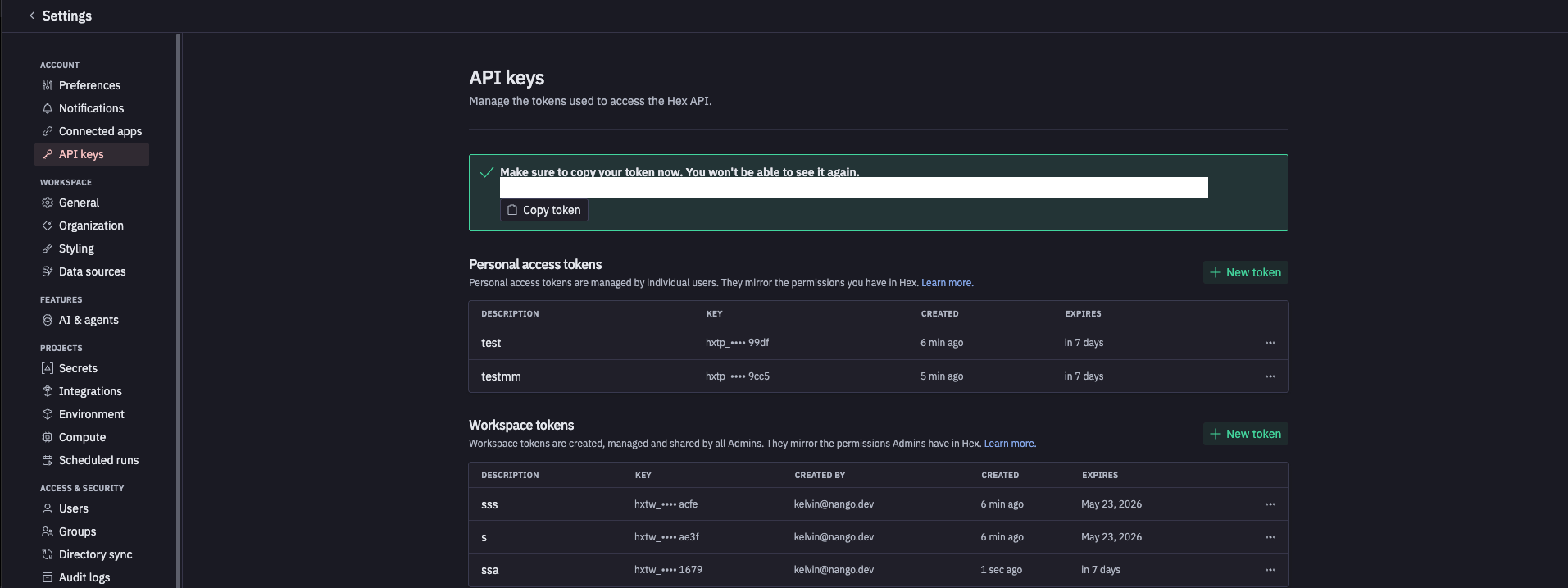
5. Copy the token immediately — it is shown **once** upon creation and cannot be retrieved later.
4. Choose the token type, click **New Token**, and fill in the form.
* **Personal access tokens** (prefix `hxtp_`) inherit your own permissions and require an expiration date.
* **Workspace tokens** (prefix `hxtw_`) are managed by admins, can be set to never expire, and support different permission scopes.
5. Copy the token immediately — it is shown **once** upon creation and cannot be retrieved later.
 #### Step 2: Finding your subdomain
Your subdomain is the part before `.hex.tech` in the URL you use to access Hex:
* **Standard accounts** → `app` (your Hex URL is `https://app.hex.tech`)
* **EU multi-tenant** → `eu` (your Hex URL is `https://eu.hex.tech`)
* **Single-tenant or HIPAA** → your custom subdomain, e.g. `atreides` (your Hex URL is `https://atreides.hex.tech`)
If you are unsure, check the URL in your browser when logged into Hex.
#### Step 3: Enter credentials in the Connect UI
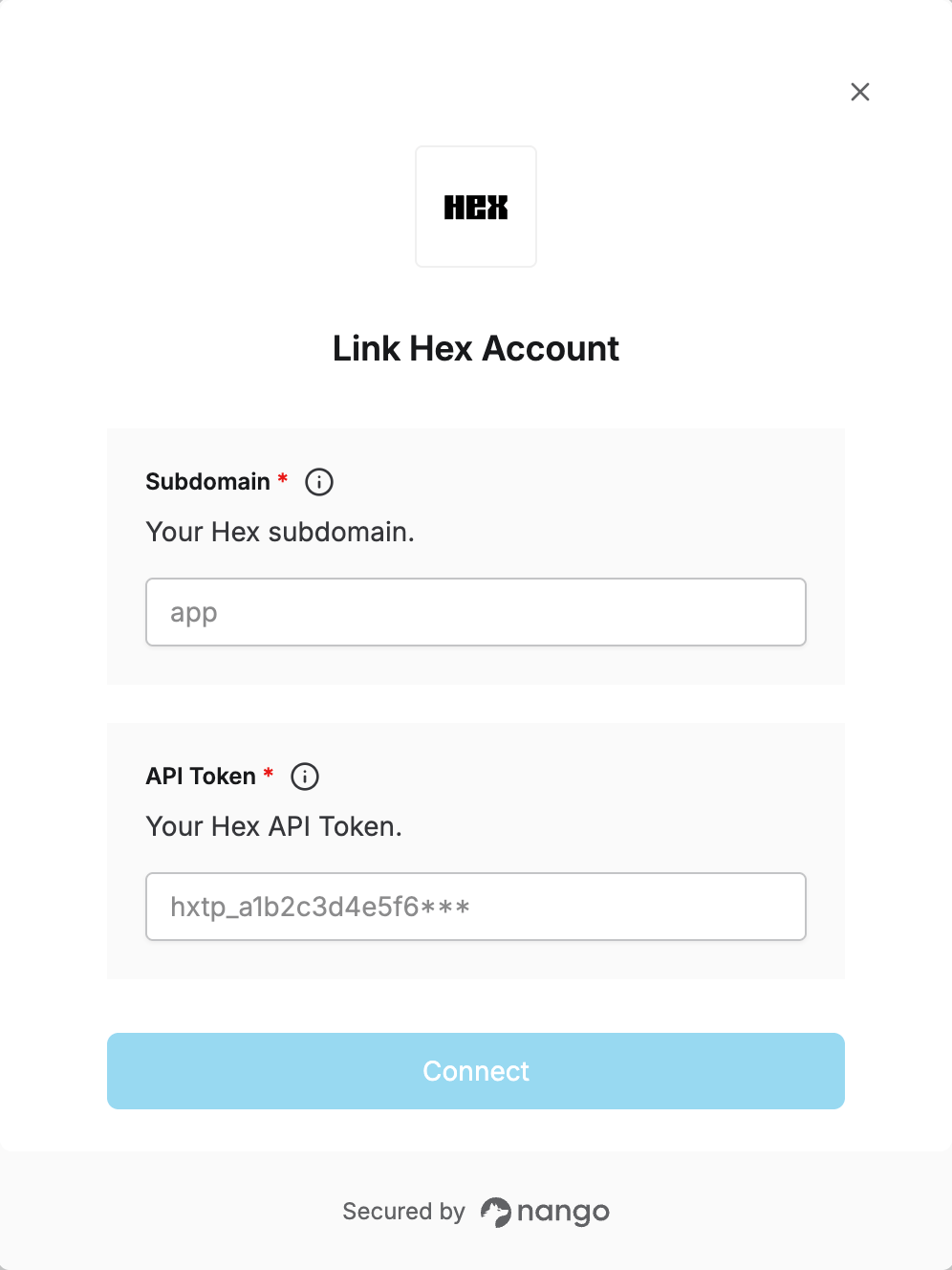
1. Open the form where you need to authenticate with Hex.
2. Enter your **Subdomain** in the Subdomain field.
3. Enter your **API Token** in the API Token field.
4. Submit the form to complete authentication.
#### Step 2: Finding your subdomain
Your subdomain is the part before `.hex.tech` in the URL you use to access Hex:
* **Standard accounts** → `app` (your Hex URL is `https://app.hex.tech`)
* **EU multi-tenant** → `eu` (your Hex URL is `https://eu.hex.tech`)
* **Single-tenant or HIPAA** → your custom subdomain, e.g. `atreides` (your Hex URL is `https://atreides.hex.tech`)
If you are unsure, check the URL in your browser when logged into Hex.
#### Step 3: Enter credentials in the Connect UI
1. Open the form where you need to authenticate with Hex.
2. Enter your **Subdomain** in the Subdomain field.
3. Enter your **API Token** in the API Token field.
4. Submit the form to complete authentication.
 You are now connected to Hex.