> ## Documentation Index
> Fetch the complete documentation index at: https://nango-marcin-get-deployments-docs.mintlify.site/llms.txt
> Use this file to discover all available pages before exploring further.
# 1Password (Users API) - How do I link my account?
# Overview
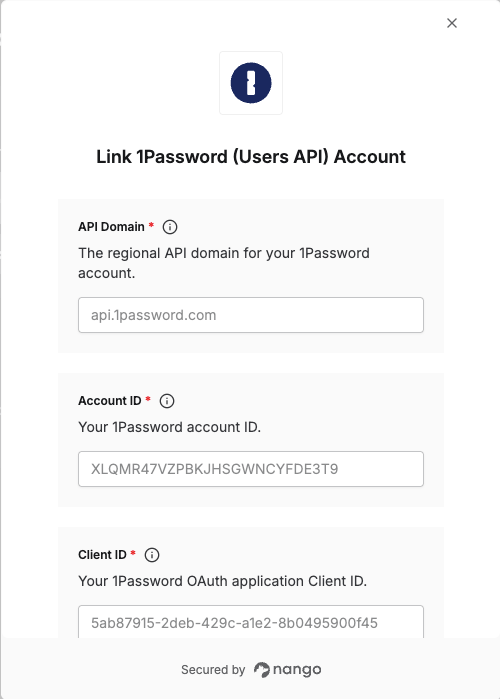
To authenticate with the 1Password Users API, you will need:
1. **API Domain** - The regional API domain for your 1Password account
2. **Account ID** - Your 1Password account ID
3. **Client ID** - Your OAuth application client ID
4. **Client Secret** - Your OAuth application client secret
This guide walks you through finding each of these values.
### Prerequisites
* A 1Password Business account with admin access
### Instructions
#### Step 1: Find your API domain
Choose the domain that matches your 1Password account region:
| Region | Domain |
| ------ | ------------------- |
| US | `api.1password.com` |
| Canada | `api.1password.ca` |
| Europe | `api.1password.eu` |
#### Step 2: Find your account ID
1. Sign in to your [1Password account](https://my.1password.com).
2. Click on your profile, then select **View your vault items**.
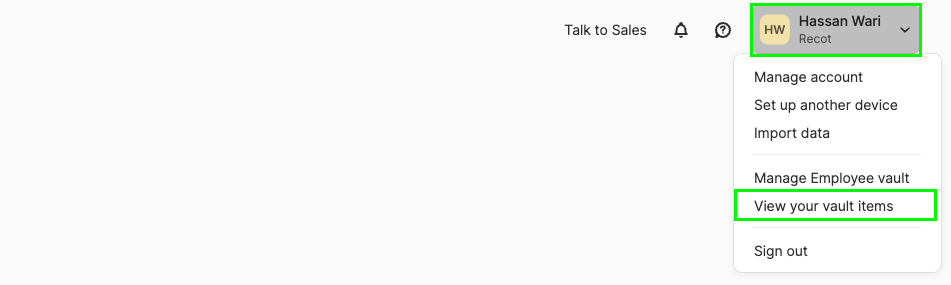 3. From your browser URL, your account ID is the 26-character alphanumeric string between `/app#/` and `/AllItems`.
#### Step 3: Obtain your client credentials
1. Sign in to your [1Password account](https://my.1password.com).
2. Select **Integrations** in the sidebar, and select **Directory** on the Integrations page.
3. From your browser URL, your account ID is the 26-character alphanumeric string between `/app#/` and `/AllItems`.
#### Step 3: Obtain your client credentials
1. Sign in to your [1Password account](https://my.1password.com).
2. Select **Integrations** in the sidebar, and select **Directory** on the Integrations page.
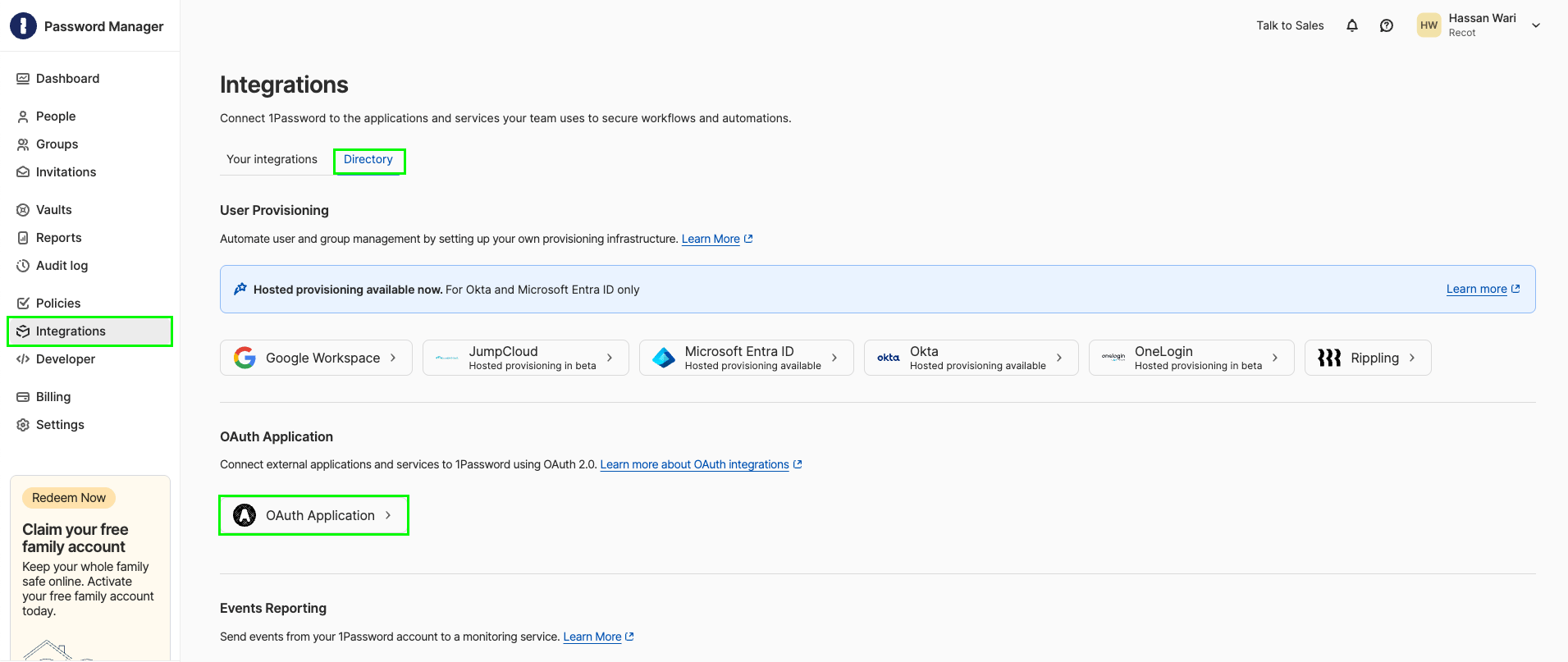 3. Select **OAuth Application**.
4. Fill in the required fields:
* **Application name**: A name to identify this integration
* **Redirect URL**: `https://api.nango.dev/oauth/callback` (not needed by nango but required by 1Password to complete the form)
* **Scopes**: Select the permissions your integration needs
3. Select **OAuth Application**.
4. Fill in the required fields:
* **Application name**: A name to identify this integration
* **Redirect URL**: `https://api.nango.dev/oauth/callback` (not needed by nango but required by 1Password to complete the form)
* **Scopes**: Select the permissions your integration needs
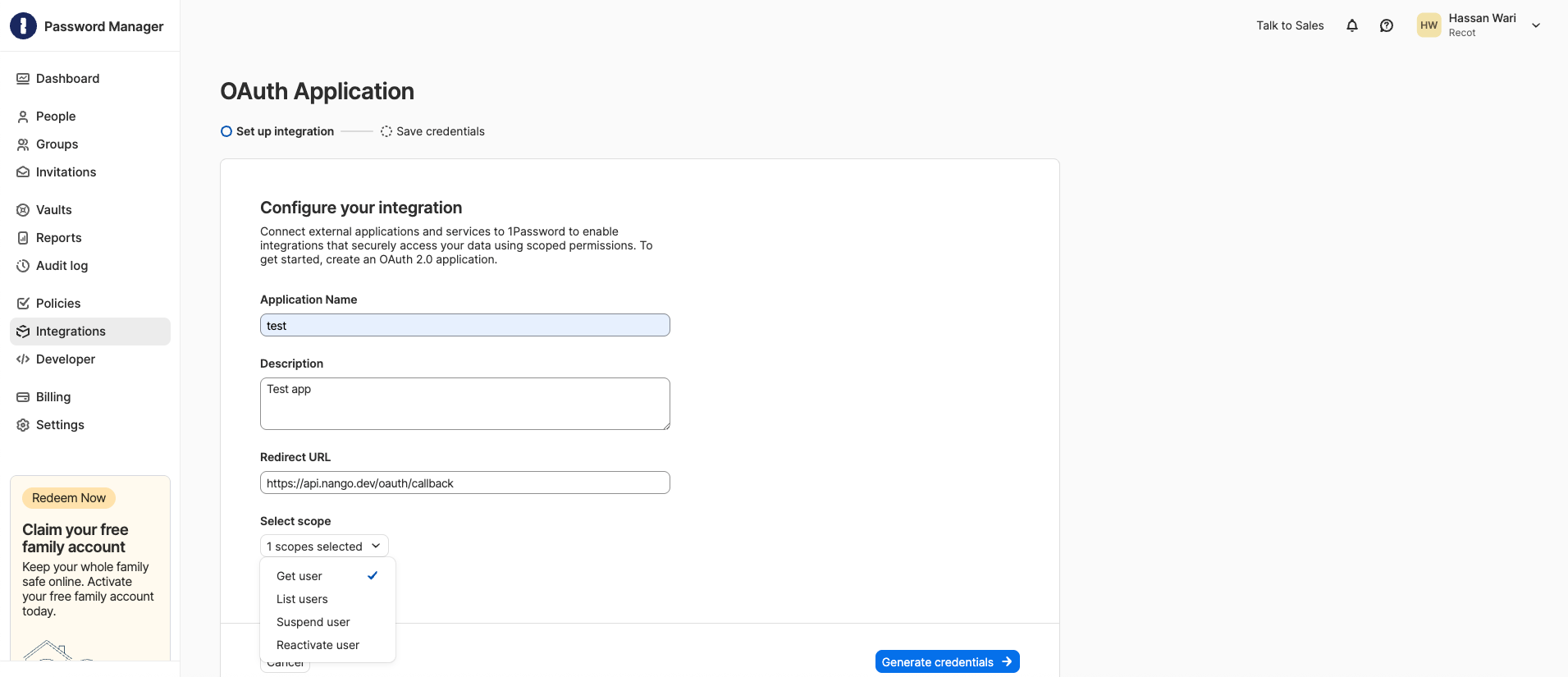 5. Select **Generate credentials**. Copy your **Client ID** and **Client Secret**.
6. Select **Save in 1Password** and choose a vault to store them.
5. Select **Generate credentials**. Copy your **Client ID** and **Client Secret**.
6. Select **Save in 1Password** and choose a vault to store them.
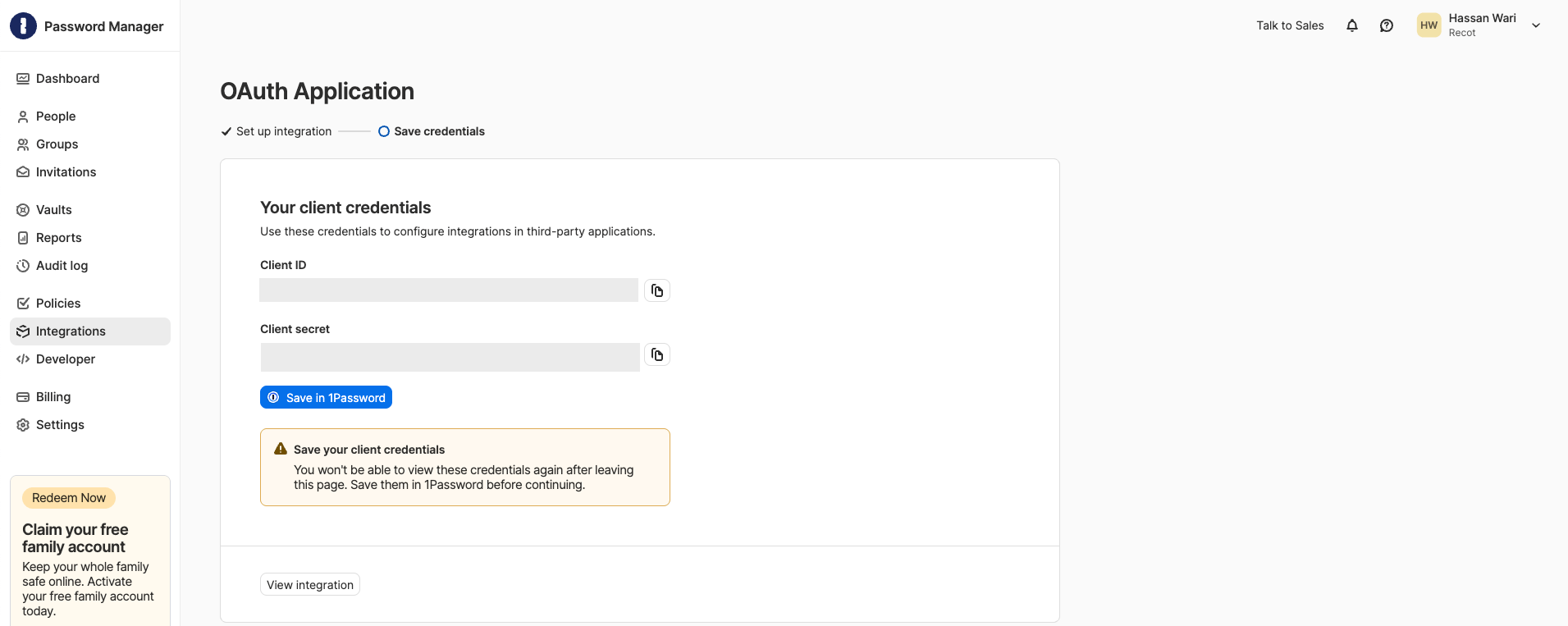 The client secret is shown only once. Save it before continuing.
#### Step 4: Enter credentials in the Connect UI
1. Open the form where you need to authenticate with 1Password.
2. Enter your **API Domain**, **Account ID**, **Client ID**, and **Client Secret** in their respective fields.
3. Submit the form to connect your account.
The client secret is shown only once. Save it before continuing.
#### Step 4: Enter credentials in the Connect UI
1. Open the form where you need to authenticate with 1Password.
2. Enter your **API Domain**, **Account ID**, **Client ID**, and **Client Secret** in their respective fields.
3. Submit the form to connect your account.
 You are now connected to the 1Password Users API.
***
You are now connected to the 1Password Users API.
***